---
title: Notes on Installing VMware Tanzu Operations Manager 3.0 and BOSH Director on AWS
tags: ["AWS", "Cloud Foundry", "Pivotal Cloud Foundry", "Ops Manager", "TAS", "Terraform"]
categories: ["Dev", "PaaS", "CloudFoundry", "PCF"]
date: 2024-06-25T16:46:57Z
updated: 2024-06-26T04:22:25Z
---
> ⚠️ This article was automatically translated by OpenAI (gpt-4o).
> It may be edited eventually, but please be aware that it may contain incorrect information at this time.
This article details the installation of VMware Tanzu Operations Manager (Ops Manager) on AWS. In [the next article](/entries/802/en), we will install Tanzu Application Service 6.0 (TAS) on the environment built here.
This guide is targeted at first-time installers, focusing on GUI-based configuration as much as possible.
**Table of Contents**
### Preparing the AWS Environment
First, we create the AWS resources that will serve as the foundation for installing Ops Manager and TAS.
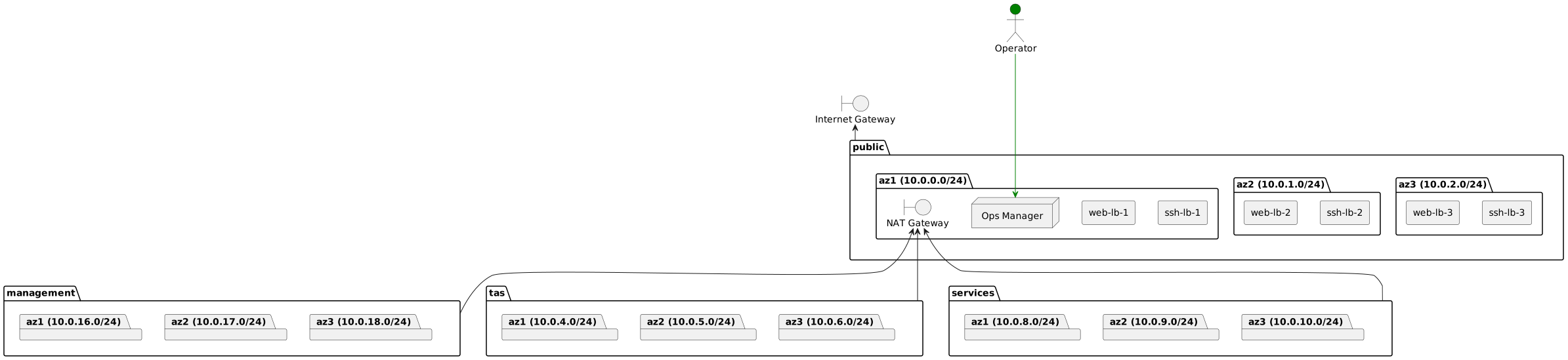
The network configuration will look like the diagram below.
 The required resources are detailed in the [documentation](https://docs.vmware.com/en/VMware-Tanzu-Operations-Manager/3.0/vmware-tanzu-ops-manager/aws-required-objects.html), but creating them manually can be cumbersome, so we will use Terraform.
Refer to [this guide](https://www.hashicorp.com/official-packaging-guide?product_intent=terraform) for installing the Terraform CLI.
The content of this article has been verified to work with the following CLI version on Ubuntu Jammy.
```
$ terraform --version
Terraform v1.8.5
on linux_amd64
```
Additionally, you will need one Route 53 Hosted Zone as a prerequisite. In this guide, we use `aws.maki.lol` as an example Hosted Zone.
The required resources are detailed in the [documentation](https://docs.vmware.com/en/VMware-Tanzu-Operations-Manager/3.0/vmware-tanzu-ops-manager/aws-required-objects.html), but creating them manually can be cumbersome, so we will use Terraform.
Refer to [this guide](https://www.hashicorp.com/official-packaging-guide?product_intent=terraform) for installing the Terraform CLI.
The content of this article has been verified to work with the following CLI version on Ubuntu Jammy.
```
$ terraform --version
Terraform v1.8.5
on linux_amd64
```
Additionally, you will need one Route 53 Hosted Zone as a prerequisite. In this guide, we use `aws.maki.lol` as an example Hosted Zone.
 Retrieve the Terraform [template](https://github.com/making/tas-paving-aws).
```
git clone https://github.com/making/tas-paving-aws
cd tas-paving-aws
```
This template will create:
- VPC
- Subnet
- Security Group
- EIP
- NLB
- Internet Gateway
- NAT Gateway
- IAM Role
- IAM Policy
- IAM Instance Profile
- Route53 Record
- S3 Bucket
Set the following environment variables.
```bash
export AWS_ACCESS_KEY_ID=...
export AWS_SECRET_ACCESS_KEY=...
export AWS_SESSION_TOKEN=... (Optional)
export AWS_REGION=ap-northeast-1
export TF_VAR_availability_zones='["ap-northeast-1a","ap-northeast-1c","ap-northeast-1d"]'
export TF_VAR_environment_name=sandbox
export TF_VAR_hosted_zone=aws.maki.lol
```
> [!NOTE]
>
> `AWS_ACCESS_KEY_ID` and `AWS_SECRET_ACCESS_KEY` are only used for running Terraform and creating the Ops Manager VM. Afterwards, AWS API access will be through the Instance Profile created by Terraform. `AWS_ACCESS_KEY_ID` and `AWS_SECRET_ACCESS_KEY` will not be set for TAS itself.
> [!TIP]
> VMware employees can use temporary credentials from [Cloud Gate](https://console.cloudgate.vmware.com/) with Power User permissions.
Run Terraform.
```
cd aws
terraform init
terraform plan -out plan
terraform apply plan
cd ..
```
You will see that the network depicted in the diagram has been created in the AWS Console.
Retrieve the Terraform [template](https://github.com/making/tas-paving-aws).
```
git clone https://github.com/making/tas-paving-aws
cd tas-paving-aws
```
This template will create:
- VPC
- Subnet
- Security Group
- EIP
- NLB
- Internet Gateway
- NAT Gateway
- IAM Role
- IAM Policy
- IAM Instance Profile
- Route53 Record
- S3 Bucket
Set the following environment variables.
```bash
export AWS_ACCESS_KEY_ID=...
export AWS_SECRET_ACCESS_KEY=...
export AWS_SESSION_TOKEN=... (Optional)
export AWS_REGION=ap-northeast-1
export TF_VAR_availability_zones='["ap-northeast-1a","ap-northeast-1c","ap-northeast-1d"]'
export TF_VAR_environment_name=sandbox
export TF_VAR_hosted_zone=aws.maki.lol
```
> [!NOTE]
>
> `AWS_ACCESS_KEY_ID` and `AWS_SECRET_ACCESS_KEY` are only used for running Terraform and creating the Ops Manager VM. Afterwards, AWS API access will be through the Instance Profile created by Terraform. `AWS_ACCESS_KEY_ID` and `AWS_SECRET_ACCESS_KEY` will not be set for TAS itself.
> [!TIP]
> VMware employees can use temporary credentials from [Cloud Gate](https://console.cloudgate.vmware.com/) with Power User permissions.
Run Terraform.
```
cd aws
terraform init
terraform plan -out plan
terraform apply plan
cd ..
```
You will see that the network depicted in the diagram has been created in the AWS Console.
 ### Installing Ops Manager
Install Ops Manager, which is required to install TAS. Ops Manager is created on the `public` network and accessed via EIP as shown below.
### Installing Ops Manager
Install Ops Manager, which is required to install TAS. Ops Manager is created on the `public` network and accessed via EIP as shown below.
 Using the AWS Console to install Ops Manager is tedious, so we will use the [`om`](https://github.com/pivotal-cf/om) CLI to create the Ops Manager VM.
```
curl https://github.com/pivotal-cf/om/releases/download/7.12.0/om-linux-amd64-7.12.0 -sL -o om
chmod +x om
sudo mv om /usr/local/bin/om
```
Create a configuration file for the Ops Manager VM as follows.
```yaml
cat < opsman.yml
---
opsman-configuration:
aws:
region: ${AWS_REGION}
vpc_subnet_id: $(cat tas-paving-aws/terraform.tfstate | jq .outputs.stable_config_opsmanager.value -r | jq -r .ops_manager_subnet_id)
security_group_ids:
- $(cat tas-paving-aws/terraform.tfstate | jq .outputs.stable_config_opsmanager.value -r | jq -r .ops_manager_security_group_id)
- $(cat tas-paving-aws/terraform.tfstate | jq .outputs.stable_config_opsmanager.value -r | jq -r .platform_vms_security_group_id)
key_pair_name: $(cat tas-paving-aws/terraform.tfstate | jq .outputs.stable_config_opsmanager.value -r | jq -r .ops_manager_key_pair_name)
iam_instance_profile_name: $(cat tas-paving-aws/terraform.tfstate | jq .outputs.stable_config_opsmanager.value -r | jq -r .ops_manager_iam_instance_profile_name)
access_key_id: ${AWS_ACCESS_KEY_ID}
secret_access_key: ${AWS_SECRET_ACCESS_KEY}
public_ip: $(cat tas-paving-aws/terraform.tfstate | jq .outputs.stable_config_opsmanager.value -r | jq -r .ops_manager_public_ip)
private_ip: 10.0.0.10
---
EOF
```
You need to get the Ops Manager AMI image ID from the [Broadcom Support Portal](https://support.broadcom.com/) (BSP). Log in to BSP and select "Tanzu" as shown below.
Using the AWS Console to install Ops Manager is tedious, so we will use the [`om`](https://github.com/pivotal-cf/om) CLI to create the Ops Manager VM.
```
curl https://github.com/pivotal-cf/om/releases/download/7.12.0/om-linux-amd64-7.12.0 -sL -o om
chmod +x om
sudo mv om /usr/local/bin/om
```
Create a configuration file for the Ops Manager VM as follows.
```yaml
cat < opsman.yml
---
opsman-configuration:
aws:
region: ${AWS_REGION}
vpc_subnet_id: $(cat tas-paving-aws/terraform.tfstate | jq .outputs.stable_config_opsmanager.value -r | jq -r .ops_manager_subnet_id)
security_group_ids:
- $(cat tas-paving-aws/terraform.tfstate | jq .outputs.stable_config_opsmanager.value -r | jq -r .ops_manager_security_group_id)
- $(cat tas-paving-aws/terraform.tfstate | jq .outputs.stable_config_opsmanager.value -r | jq -r .platform_vms_security_group_id)
key_pair_name: $(cat tas-paving-aws/terraform.tfstate | jq .outputs.stable_config_opsmanager.value -r | jq -r .ops_manager_key_pair_name)
iam_instance_profile_name: $(cat tas-paving-aws/terraform.tfstate | jq .outputs.stable_config_opsmanager.value -r | jq -r .ops_manager_iam_instance_profile_name)
access_key_id: ${AWS_ACCESS_KEY_ID}
secret_access_key: ${AWS_SECRET_ACCESS_KEY}
public_ip: $(cat tas-paving-aws/terraform.tfstate | jq .outputs.stable_config_opsmanager.value -r | jq -r .ops_manager_public_ip)
private_ip: 10.0.0.10
---
EOF
```
You need to get the Ops Manager AMI image ID from the [Broadcom Support Portal](https://support.broadcom.com/) (BSP). Log in to BSP and select "Tanzu" as shown below.
 Select "VMware Tanzu Operation Manager" from "My Downloads."
 Click "VMware Tanzu Operation Manager."
 Select the latest version. In the image below, it is `3.0.30+LTS-T`.
 **Check "I agree to the Terms and Conditions"** and download "Tanzu Ops Manager YAML for AWS ..."
 You will get a YAML file like this.
```yaml
$ cat ops-manager-aws-3.0.30+LTS-T.yml
---
ap-south-2: ami-079351fec0d47937b
# ...
ap-northeast-1: ami-00d6d7bbd9d6a202f
# ...
```
Use the previously created `opsman.yml` and the YAML downloaded from BSP to create the Ops Manager VM with the `om` command.
```
om vm-lifecycle create-vm --config=opsman.yml --image-file=ops-manager-aws-3.0.30+LTS-T.yml
```
You will see logs like the following, and the Ops Manager VM will be created.
```
Using aws...
Executing: "aws ec2 run-instances --tag-specifications ResourceType=instance,Tags=[{Key=Name,Value=ops-manager-vm}] --image-id ami-00d6d7bbd9d6a202f --subnet-id subnet-014057c9d1c4a7bd6 --security-group-ids sg-01e92981c8c881bec sg-0ffd0662a685d574f --count 1 --instance-type m5.large --key-name sandbox-ops-manager-key --no-associate-public-ip-address --iam-instance-profile Name=sandbox-ops-manager --query Instances[0].InstanceId --private-ip-address 10.0.0.10"
This could take a few moments...
aws[stdout]: "i-0ddbef586f5731165"
Executing: "aws ec2 describe-volumes --filters Name=attachment.instance-id,Values=i-0ddbef586f5731165 Name=attachment.status,Values=attached Name=status,Values=in-use --query Volumes[0].VolumeId"
This could take a few moments...
aws[stdout]: "vol-0a4005fe1de960ff7"
Executing: "aws ec2 modify-volume --volume-id vol-0a4005fe1de960ff7 --size 200"
This could take a few moments...
aws[stdout]: {
aws[stdout]: "VolumeModification": {
aws[stdout]: "VolumeId": "vol-0a4005fe1de960ff7",
aws[stdout]: "ModificationState": "modifying",
aws[stdout]: "TargetSize": 200,
aws[stdout]: "TargetIops": 600,
aws[stdout]: "TargetVolumeType": "gp2",
aws[stdout]: "TargetMultiAttachEnabled": false,
aws[stdout]: "OriginalSize": 10,
aws[stdout]: "OriginalIops": 100,
aws[stdout]: "OriginalVolumeType": "gp2",
aws[stdout]: "OriginalMultiAttachEnabled": false,
aws[stdout]: "Progress": 0,
aws[stdout]: "StartTime": "2024-06-25T03:08:34+00:00"
aws[stdout]: }
aws[stdout]: }
Executing: "aws ec2 describe-addresses --filters Name=public-ip,Values=54.65.94.27 --query Addresses[0].AllocationId"
This could take a few moments...
aws[stdout]: "eipalloc-0b56ffe4ab20a23d2"
Executing: "aws ec2 associate-address --allocation-id eipalloc-0b56ffe4ab20a23d2 --instance-id i-0ddbef586f5731165"
This could take a few moments...
aws[stdout]: {
aws[stdout]: "AssociationId": "eipassoc-0b5a6e1c26ee8d6ec"
aws[stdout]: }
Executing: "aws ec2 stop-instances --instance-ids i-0ddbef586f5731165"
This could take a few moments...
aws[stdout]: {
aws[stdout]: "StoppingInstances": [
aws[stdout]: {
aws[stdout]: "CurrentState": {
aws[stdout]: "Code": 64,
aws[stdout]: "Name": "stopping"
aws[stdout]: },
aws[stdout]: "InstanceId": "i-0ddbef586f5731165",
aws[stdout]: "PreviousState": {
aws[stdout]: "Code": 16,
aws[stdout]: "Name": "running"
aws[stdout]: }
aws[stdout]: }
aws[stdout]: ]
aws[stdout]: }
Executing: "aws ec2 describe-instances --instance-ids i-0ddbef586f5731165 --query Reservations[*].Instances[*].State.Name"
This could take a few moments...
aws[stdout]: [
aws[stdout]: [
aws[stdout]: "stopping"
aws[stdout]: ]
aws[stdout]: ]
Executing: "aws ec2 describe-instances --instance-ids i-0ddbef586f5731165 --query Reservations[*].Instances[*].State.Name"
This could take a few moments...
aws[stdout]: [
aws[stdout]: [
aws[stdout]: "stopping"
aws[stdout]: ]
aws[stdout]: ]
Executing: "aws ec2 describe-instances --instance-ids i-0ddbef586f5731165 --query Reservations[*].Instances[*].State.Name"
This could take a few moments...
aws[stdout]: [
aws[stdout]: [
aws[stdout]: "stopping"
aws[stdout]: ]
aws[stdout]: ]
...
Executing: "aws ec2 describe-instances --instance-ids i-0ddbef586f5731165 --query Reservations[*].Instances[*].State.Name"
This could take a few moments...
aws[stdout]: [
aws[stdout]: [
aws[stdout]: "stopped"
aws[stdout]: ]
aws[stdout]: ]
Executing: "aws ec2 start-instances --instance-ids i-0ddbef586f5731165"
This could take a few moments...
aws[stdout]: {
aws[stdout]: "StartingInstances": [
aws[stdout]: {
aws[stdout]: "CurrentState": {
aws[stdout]: "Code": 0,
aws[stdout]: "Name": "pending"
aws[stdout]: },
aws[stdout]: "InstanceId": "i-0ddbef586f5731165",
aws[stdout]: "PreviousState": {
aws[stdout]: "Code": 80,
aws[stdout]: "Name": "stopped"
aws[stdout]: }
aws[stdout]: }
aws[stdout]: ]
aws[stdout]: }
OpsMan VM created successfully
```
You will see an instance named `ops-manager-vm` in the ECS dashboard.
You will get a YAML file like this.
```yaml
$ cat ops-manager-aws-3.0.30+LTS-T.yml
---
ap-south-2: ami-079351fec0d47937b
# ...
ap-northeast-1: ami-00d6d7bbd9d6a202f
# ...
```
Use the previously created `opsman.yml` and the YAML downloaded from BSP to create the Ops Manager VM with the `om` command.
```
om vm-lifecycle create-vm --config=opsman.yml --image-file=ops-manager-aws-3.0.30+LTS-T.yml
```
You will see logs like the following, and the Ops Manager VM will be created.
```
Using aws...
Executing: "aws ec2 run-instances --tag-specifications ResourceType=instance,Tags=[{Key=Name,Value=ops-manager-vm}] --image-id ami-00d6d7bbd9d6a202f --subnet-id subnet-014057c9d1c4a7bd6 --security-group-ids sg-01e92981c8c881bec sg-0ffd0662a685d574f --count 1 --instance-type m5.large --key-name sandbox-ops-manager-key --no-associate-public-ip-address --iam-instance-profile Name=sandbox-ops-manager --query Instances[0].InstanceId --private-ip-address 10.0.0.10"
This could take a few moments...
aws[stdout]: "i-0ddbef586f5731165"
Executing: "aws ec2 describe-volumes --filters Name=attachment.instance-id,Values=i-0ddbef586f5731165 Name=attachment.status,Values=attached Name=status,Values=in-use --query Volumes[0].VolumeId"
This could take a few moments...
aws[stdout]: "vol-0a4005fe1de960ff7"
Executing: "aws ec2 modify-volume --volume-id vol-0a4005fe1de960ff7 --size 200"
This could take a few moments...
aws[stdout]: {
aws[stdout]: "VolumeModification": {
aws[stdout]: "VolumeId": "vol-0a4005fe1de960ff7",
aws[stdout]: "ModificationState": "modifying",
aws[stdout]: "TargetSize": 200,
aws[stdout]: "TargetIops": 600,
aws[stdout]: "TargetVolumeType": "gp2",
aws[stdout]: "TargetMultiAttachEnabled": false,
aws[stdout]: "OriginalSize": 10,
aws[stdout]: "OriginalIops": 100,
aws[stdout]: "OriginalVolumeType": "gp2",
aws[stdout]: "OriginalMultiAttachEnabled": false,
aws[stdout]: "Progress": 0,
aws[stdout]: "StartTime": "2024-06-25T03:08:34+00:00"
aws[stdout]: }
aws[stdout]: }
Executing: "aws ec2 describe-addresses --filters Name=public-ip,Values=54.65.94.27 --query Addresses[0].AllocationId"
This could take a few moments...
aws[stdout]: "eipalloc-0b56ffe4ab20a23d2"
Executing: "aws ec2 associate-address --allocation-id eipalloc-0b56ffe4ab20a23d2 --instance-id i-0ddbef586f5731165"
This could take a few moments...
aws[stdout]: {
aws[stdout]: "AssociationId": "eipassoc-0b5a6e1c26ee8d6ec"
aws[stdout]: }
Executing: "aws ec2 stop-instances --instance-ids i-0ddbef586f5731165"
This could take a few moments...
aws[stdout]: {
aws[stdout]: "StoppingInstances": [
aws[stdout]: {
aws[stdout]: "CurrentState": {
aws[stdout]: "Code": 64,
aws[stdout]: "Name": "stopping"
aws[stdout]: },
aws[stdout]: "InstanceId": "i-0ddbef586f5731165",
aws[stdout]: "PreviousState": {
aws[stdout]: "Code": 16,
aws[stdout]: "Name": "running"
aws[stdout]: }
aws[stdout]: }
aws[stdout]: ]
aws[stdout]: }
Executing: "aws ec2 describe-instances --instance-ids i-0ddbef586f5731165 --query Reservations[*].Instances[*].State.Name"
This could take a few moments...
aws[stdout]: [
aws[stdout]: [
aws[stdout]: "stopping"
aws[stdout]: ]
aws[stdout]: ]
Executing: "aws ec2 describe-instances --instance-ids i-0ddbef586f5731165 --query Reservations[*].Instances[*].State.Name"
This could take a few moments...
aws[stdout]: [
aws[stdout]: [
aws[stdout]: "stopping"
aws[stdout]: ]
aws[stdout]: ]
Executing: "aws ec2 describe-instances --instance-ids i-0ddbef586f5731165 --query Reservations[*].Instances[*].State.Name"
This could take a few moments...
aws[stdout]: [
aws[stdout]: [
aws[stdout]: "stopping"
aws[stdout]: ]
aws[stdout]: ]
...
Executing: "aws ec2 describe-instances --instance-ids i-0ddbef586f5731165 --query Reservations[*].Instances[*].State.Name"
This could take a few moments...
aws[stdout]: [
aws[stdout]: [
aws[stdout]: "stopped"
aws[stdout]: ]
aws[stdout]: ]
Executing: "aws ec2 start-instances --instance-ids i-0ddbef586f5731165"
This could take a few moments...
aws[stdout]: {
aws[stdout]: "StartingInstances": [
aws[stdout]: {
aws[stdout]: "CurrentState": {
aws[stdout]: "Code": 0,
aws[stdout]: "Name": "pending"
aws[stdout]: },
aws[stdout]: "InstanceId": "i-0ddbef586f5731165",
aws[stdout]: "PreviousState": {
aws[stdout]: "Code": 80,
aws[stdout]: "Name": "stopped"
aws[stdout]: }
aws[stdout]: }
aws[stdout]: ]
aws[stdout]: }
OpsMan VM created successfully
```
You will see an instance named `ops-manager-vm` in the ECS dashboard.
 The DNS name of this Ops Manager can be checked with the following command. It should be `opsmanager.${TF_VAR_environment_name}.${TF_VAR_hosted_zone}`.
```
cat tas-paving-aws/terraform.tfstate | jq .outputs.stable_config_opsmanager.value -r | jq -r .ops_manager_dns
```
Since a self-signed certificate is used, you will see a warning when accessing via the browser. Type `this is unsafe` on the browser screen.
The DNS name of this Ops Manager can be checked with the following command. It should be `opsmanager.${TF_VAR_environment_name}.${TF_VAR_hosted_zone}`.
```
cat tas-paving-aws/terraform.tfstate | jq .outputs.stable_config_opsmanager.value -r | jq -r .ops_manager_dns
```
Since a self-signed certificate is used, you will see a warning when accessing via the browser. Type `this is unsafe` on the browser screen.
 The initial setup screen of Ops Manager will be displayed. Click the "Internal Authentication" button.
 Set the admin user's username, password, and decryption passphrase, then click the "Setup Authentication" button.
 Wait for a while.
 The login screen will be displayed.
 Enter the admin user's username and password and click the "SIGN IN" button. You will see a dashboard screen like this.
 > [!TIP]
>
> To access Ops Manager via ssh, use the following command to get the SSH private key.
> ```
> cat tas-paving-aws/terraform.tfstate | jq .outputs.stable_config_opsmanager.value -r | jq -r .ops_manager_ssh_private_key > opsman.pem
> chmod 600 opsman.pem
> ```
>
> You can access via SSH using the following command with the obtained SSH private key.
>
> ```
> ssh ubuntu@$(cat tas-paving-aws/terraform.tfstate | jq .outputs.stable_config_opsmanager.value -r | jq -r .ops_manager_dns) -i opsman.pem
> ```
### Creating Certificates with Let's Encrypt
Although installation can proceed with the self-signed certificate, we will use a certificate issued by Let's Encrypt for this installation. The certificate created here will also be used for the TAS installation in the next article.
Install the `lego` CLI.
```
sudo apt-get install lego -y
```
Set the following environment variables.
```
export AWS_REGION=...
export AWS_ACCESS_KEY_ID=...
export AWS_SECRET_ACCESS_KEY=...
export AWS_SESSION_TOKEN=... (Optional)
export AWS_HOSTED_ZONE_ID=$(aws route53 list-hosted-zones | jq -r --arg NAME "${TF_VAR_hosted_zone}." '.HostedZones[] | select(.Name == $NAME) | .Id' | sed 's|/hostedzone/||')
export SUBDOMAIN=${TF_VAR_environment_name}.${TF_VAR_hosted_zone}
export EMAIL=
```
Create the certificate with the following command.
```
lego --accept-tos \
--key-type=rsa4096 \
--domains="*.${SUBDOMAIN}" \
--domains="*.apps.${SUBDOMAIN}" \
--domains="*.sys.${SUBDOMAIN}" \
--email=${EMAIL} \
--dns=route53 \
run
```
Certificates will be generated in the following directory.
```
$ ls -la .lego/certificates/
total 16
drwx------ 6 tmaki tmaki 192 Jun 25 08:00 .
drwx------ 4 tmaki tmaki 128 Jun 25 07:56 ..
-rw------- 1 tmaki tmaki 4014 Jun 25 08:00 _.sandbox.aws.maki.lol.crt
-rw------- 1 tmaki tmaki 1802 Jun 25 08:00 _.sandbox.aws.maki.lol.issuer.crt
-rw------- 1 tmaki tmaki 243 Jun 25 08:00 _.sandbox.aws.maki.lol.json
-rw------- 1 tmaki tmaki 3243 Jun 25 08:00 _.sandbox.aws.maki.lol.key
```
You can verify the Subject Alternative Names of the certificate with the following command.
```
$ cat .lego/certificates/_.sandbox.aws.maki.lol.crt | openssl x509 -noout -text | grep DNS:
DNS:*.apps.sandbox.aws.maki.lol, DNS:*.sandbox.aws.maki.lol, DNS:*.sys.sandbox.aws.maki.lol
```
To set this certificate in Ops Manager, use the `om` CLI.
Describe the information to access `Ops Manager` in `env.yml`.
```
export OM_USERNAME=
export OM_PASSWORD=
export OM_DECRYPTION_PASSPHRASE=
cat < env.yml
target: https://opsmanager.${SUBDOMAIN}
connect-timeout: 30
request-timeout: 1800
skip-ssl-validation: true
username: ${OM_USERNAME}
password: ${OM_PASSWORD}
decryption-passphrase: ${OM_DECRYPTION_PASSPHRASE}
EOF
```
Define the certificate to be set in Ops Manager in `ssl-certificate.yml`.
```
cat < ssl-certificate.yml
ssl-certificate:
certificate: |
$(cat .lego/certificates/_.${SUBDOMAIN}.crt | sed 's/^/ /g')
private_key: |
$(cat .lego/certificates/_.${SUBDOMAIN}.key | sed 's/^/ /g')
EOF
```
Set the certificate in Ops Manager with the following command.
```
om --env env.yml configure-opsman --config ssl-certificate.yml
```
After a while, the certificate warning will disappear when accessing via the browser. It is faster to access in a new window.
> [!TIP]
>
> To access Ops Manager via ssh, use the following command to get the SSH private key.
> ```
> cat tas-paving-aws/terraform.tfstate | jq .outputs.stable_config_opsmanager.value -r | jq -r .ops_manager_ssh_private_key > opsman.pem
> chmod 600 opsman.pem
> ```
>
> You can access via SSH using the following command with the obtained SSH private key.
>
> ```
> ssh ubuntu@$(cat tas-paving-aws/terraform.tfstate | jq .outputs.stable_config_opsmanager.value -r | jq -r .ops_manager_dns) -i opsman.pem
> ```
### Creating Certificates with Let's Encrypt
Although installation can proceed with the self-signed certificate, we will use a certificate issued by Let's Encrypt for this installation. The certificate created here will also be used for the TAS installation in the next article.
Install the `lego` CLI.
```
sudo apt-get install lego -y
```
Set the following environment variables.
```
export AWS_REGION=...
export AWS_ACCESS_KEY_ID=...
export AWS_SECRET_ACCESS_KEY=...
export AWS_SESSION_TOKEN=... (Optional)
export AWS_HOSTED_ZONE_ID=$(aws route53 list-hosted-zones | jq -r --arg NAME "${TF_VAR_hosted_zone}." '.HostedZones[] | select(.Name == $NAME) | .Id' | sed 's|/hostedzone/||')
export SUBDOMAIN=${TF_VAR_environment_name}.${TF_VAR_hosted_zone}
export EMAIL=
```
Create the certificate with the following command.
```
lego --accept-tos \
--key-type=rsa4096 \
--domains="*.${SUBDOMAIN}" \
--domains="*.apps.${SUBDOMAIN}" \
--domains="*.sys.${SUBDOMAIN}" \
--email=${EMAIL} \
--dns=route53 \
run
```
Certificates will be generated in the following directory.
```
$ ls -la .lego/certificates/
total 16
drwx------ 6 tmaki tmaki 192 Jun 25 08:00 .
drwx------ 4 tmaki tmaki 128 Jun 25 07:56 ..
-rw------- 1 tmaki tmaki 4014 Jun 25 08:00 _.sandbox.aws.maki.lol.crt
-rw------- 1 tmaki tmaki 1802 Jun 25 08:00 _.sandbox.aws.maki.lol.issuer.crt
-rw------- 1 tmaki tmaki 243 Jun 25 08:00 _.sandbox.aws.maki.lol.json
-rw------- 1 tmaki tmaki 3243 Jun 25 08:00 _.sandbox.aws.maki.lol.key
```
You can verify the Subject Alternative Names of the certificate with the following command.
```
$ cat .lego/certificates/_.sandbox.aws.maki.lol.crt | openssl x509 -noout -text | grep DNS:
DNS:*.apps.sandbox.aws.maki.lol, DNS:*.sandbox.aws.maki.lol, DNS:*.sys.sandbox.aws.maki.lol
```
To set this certificate in Ops Manager, use the `om` CLI.
Describe the information to access `Ops Manager` in `env.yml`.
```
export OM_USERNAME=
export OM_PASSWORD=
export OM_DECRYPTION_PASSPHRASE=
cat < env.yml
target: https://opsmanager.${SUBDOMAIN}
connect-timeout: 30
request-timeout: 1800
skip-ssl-validation: true
username: ${OM_USERNAME}
password: ${OM_PASSWORD}
decryption-passphrase: ${OM_DECRYPTION_PASSPHRASE}
EOF
```
Define the certificate to be set in Ops Manager in `ssl-certificate.yml`.
```
cat < ssl-certificate.yml
ssl-certificate:
certificate: |
$(cat .lego/certificates/_.${SUBDOMAIN}.crt | sed 's/^/ /g')
private_key: |
$(cat .lego/certificates/_.${SUBDOMAIN}.key | sed 's/^/ /g')
EOF
```
Set the certificate in Ops Manager with the following command.
```
om --env env.yml configure-opsman --config ssl-certificate.yml
```
After a while, the certificate warning will disappear when accessing via the browser. It is faster to access in a new window.
 > [!TIP]
>
> If you want to set it from the Ops Manager GUI, click your username in the upper right corner, select "Settings" → "SSL Certificate," and set the Certificate and Private Key, then save.
>
>
> [!TIP]
>
> If you want to set it from the Ops Manager GUI, click your username in the upper right corner, select "Settings" → "SSL Certificate," and set the Certificate and Private Key, then save.
>
>  ### Installing BOSH Director
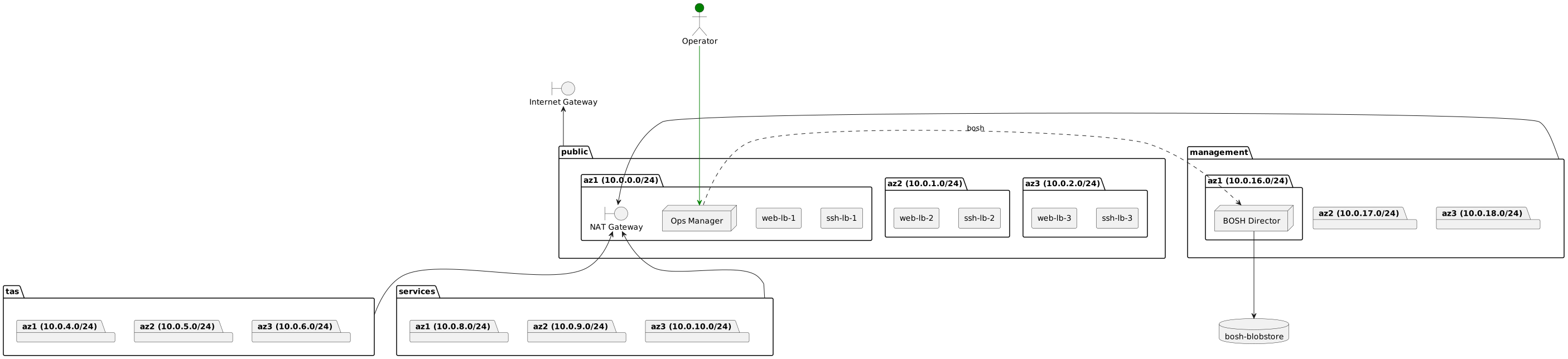
Next, use Ops Manager to install BOSH Director. BOSH Director is a crucial component that manages the installation, updates, and health monitoring of TAS. It is analogous to Kubernetes for VMs.
BOSH Director is installed on the `management` network as shown below.
### Installing BOSH Director
Next, use Ops Manager to install BOSH Director. BOSH Director is a crucial component that manages the installation, updates, and health monitoring of TAS. It is analogous to Kubernetes for VMs.
BOSH Director is installed on the `management` network as shown below.
 #### AWS Config
Configure the information for BOSH Director to access AWS. Instead of using AWS access keys, use Instance Profiles.
https://docs.vmware.com/en/VMware-Tanzu-Operations-Manager/3.0/vmware-tanzu-ops-manager/aws-config-manual.html#step-2-configure-aws-1
#### AWS Config
Configure the information for BOSH Director to access AWS. Instead of using AWS access keys, use Instance Profiles.
https://docs.vmware.com/en/VMware-Tanzu-Operations-Manager/3.0/vmware-tanzu-ops-manager/aws-config-manual.html#step-2-configure-aws-1
 1. Select `Use AWS Instance Profile` and set `AWS IAM Instance Profile` to the result of `cat tas-paving-aws/terraform.tfstate | jq .outputs.stable_config_opsmanager.value -r | jq -r .ops_manager_iam_instance_profile_name`
2. Set `Security Group ID` to the result of `cat tas-paving-aws/terraform.tfstate | jq .outputs.stable_config_opsmanager.value -r | jq -r .platform_vms_security_group_id`
3. Set `Key Pair Name` to the result of `cat tas-paving-aws/terraform.tfstate | jq .outputs.stable_config_opsmanager.value -r | jq -r .ops_manager_key_pair_name`
4. Set `SSH Private Key` to the result of `cat tas-paving-aws/terraform.tfstate | jq .outputs.stable_config_opsmanager.value -r | jq -r .ops_manager_ssh_private_key`
5. Set `Region` to the result of `echo $AWS_REGION`
Click the "Save" button to save the settings.
#### Director Config
Configure BOSH Director itself. Use the S3 bucket created by Terraform as the Blobstore.
https://docs.vmware.com/en/VMware-Tanzu-Operations-Manager/3.0/vmware-tanzu-ops-manager/aws-config-manual.html#step-3-complete-the-director-config-page-2
1. Select `Use AWS Instance Profile` and set `AWS IAM Instance Profile` to the result of `cat tas-paving-aws/terraform.tfstate | jq .outputs.stable_config_opsmanager.value -r | jq -r .ops_manager_iam_instance_profile_name`
2. Set `Security Group ID` to the result of `cat tas-paving-aws/terraform.tfstate | jq .outputs.stable_config_opsmanager.value -r | jq -r .platform_vms_security_group_id`
3. Set `Key Pair Name` to the result of `cat tas-paving-aws/terraform.tfstate | jq .outputs.stable_config_opsmanager.value -r | jq -r .ops_manager_key_pair_name`
4. Set `SSH Private Key` to the result of `cat tas-paving-aws/terraform.tfstate | jq .outputs.stable_config_opsmanager.value -r | jq -r .ops_manager_ssh_private_key`
5. Set `Region` to the result of `echo $AWS_REGION`
Click the "Save" button to save the settings.
#### Director Config
Configure BOSH Director itself. Use the S3 bucket created by Terraform as the Blobstore.
https://docs.vmware.com/en/VMware-Tanzu-Operations-Manager/3.0/vmware-tanzu-ops-manager/aws-config-manual.html#step-3-complete-the-director-config-page-2
 1. Set the address of the NTP server in `NTP Servers (comma delimited)` (e.g., `time.google.com`)
2. Check `Enable VM Resurrector Plugin`
3. Select `S3 Compatible Blobstore` for `Blobstore Location` and:
1. Set the `S3 Endpoint` to the [S3 Endpoint URL](https://docs.aws.amazon.com/general/latest/gr/s3.html) for your region, typically the value of `echo https://s3.${AWS_REGION}.amazonaws.com`
2. Select `IAM Instance Profile` for `Credentials Source`
3. Select `V4 Signature` for `S3 Signature Version` and set `Region` to the value of `echo $AWS_REGION`
4. Select `Use a versioned bucket` for `S3 Backup Strategy`
4. Select `On` for `Certificate Duration Overrides` (to extend the certificate duration to 10 years and prevent expiration-related incidents)
1. Set `CA Certificate Duration (days)` to `3650`
1. Set `Leaf Certificate Duration (days)` to `3650`
Click the "Save" button to save the settings.
#### Create Availability Zones
Set the options for the Availability Zones where BOSH Director will deploy VMs.
https://docs.vmware.com/en/VMware-Tanzu-Operations-Manager/3.0/vmware-tanzu-ops-manager/aws-config-manual.html#step-4-create-availability-zones-3
1. Set the address of the NTP server in `NTP Servers (comma delimited)` (e.g., `time.google.com`)
2. Check `Enable VM Resurrector Plugin`
3. Select `S3 Compatible Blobstore` for `Blobstore Location` and:
1. Set the `S3 Endpoint` to the [S3 Endpoint URL](https://docs.aws.amazon.com/general/latest/gr/s3.html) for your region, typically the value of `echo https://s3.${AWS_REGION}.amazonaws.com`
2. Select `IAM Instance Profile` for `Credentials Source`
3. Select `V4 Signature` for `S3 Signature Version` and set `Region` to the value of `echo $AWS_REGION`
4. Select `Use a versioned bucket` for `S3 Backup Strategy`
4. Select `On` for `Certificate Duration Overrides` (to extend the certificate duration to 10 years and prevent expiration-related incidents)
1. Set `CA Certificate Duration (days)` to `3650`
1. Set `Leaf Certificate Duration (days)` to `3650`
Click the "Save" button to save the settings.
#### Create Availability Zones
Set the options for the Availability Zones where BOSH Director will deploy VMs.
https://docs.vmware.com/en/VMware-Tanzu-Operations-Manager/3.0/vmware-tanzu-ops-manager/aws-config-manual.html#step-4-create-availability-zones-3
 1. Click the "Add" button as many times as the number of Availability Zones output by `cat tas-paving-aws/terraform.tfstate | jq .outputs.stable_config_opsmanager.value -r | jq -r .availability_zones` and set the values accordingly.
Click the "Save" button to save the settings.
#### Create Networks
Set the options for the Network where BOSH Director will deploy VMs. This is the most complex part of the installation, including TAS.
https://docs.vmware.com/en/VMware-Tanzu-Operations-Manager/3.0/vmware-tanzu-ops-manager/aws-config-manual.html#step-5-create-networks-4
1. Click the "Add" button as many times as the number of Availability Zones output by `cat tas-paving-aws/terraform.tfstate | jq .outputs.stable_config_opsmanager.value -r | jq -r .availability_zones` and set the values accordingly.
Click the "Save" button to save the settings.
#### Create Networks
Set the options for the Network where BOSH Director will deploy VMs. This is the most complex part of the installation, including TAS.
https://docs.vmware.com/en/VMware-Tanzu-Operations-Manager/3.0/vmware-tanzu-ops-manager/aws-config-manual.html#step-5-create-networks-4
 1. Click the "Add Network" button and set `Name` to `management` (the network where BOSH Director is installed)
1. In `Subnets`:
1. Set `VPC Subnet ID` to the result of `cat tas-paving-aws/terraform.tfstate | jq .outputs.stable_config_opsmanager.value -r | jq -r .management_subnet_ids[0]`
1. Set `CIDR` to the result of `cat tas-paving-aws/terraform.tfstate | jq .outputs.stable_config_opsmanager.value -r | jq -r .management_subnet_cidrs[0]` (default: `10.0.16.0/24`)
1. Set `Reserved IP Ranges` to the result of `cat tas-paving-aws/terraform.tfstate | jq .outputs.stable_config_opsmanager.value -r | jq -r .management_subnet_reserved_ip_ranges[0]` (default: `10.0.16.1-10.0.16.9`)
1. Set `DNS` to `10.0.0.2`
1. Set `Gateway` to the result of `cat tas-paving-aws/terraform.tfstate | jq .outputs.stable_config_opsmanager.value -r | jq -r .management_subnet_gateways[0]` (default: `10.0.16.1`)
1. Select the first Availability Zone for `Availability Zones`
1. Click the "Add Subnet" button and in `Subnets`:
1. Set `VPC Subnet ID` to the result of `cat tas-paving-aws/terraform.tfstate | jq .outputs.stable_config_opsmanager.value -r | jq -r .management_subnet_ids[1]`
1. Set `CIDR` to the result of `cat tas-paving-aws/terraform.tfstate | jq .outputs.stable_config_opsmanager.value -r | jq -r .management_subnet_cidrs[1]` (default: `10.0.17.0/24`)
1. Set `Reserved IP Ranges` to the result of `cat tas-paving-aws/terraform.tfstate | jq .outputs.stable_config_opsmanager.value -r | jq -r .management_subnet_reserved_ip_ranges[1]` (default: `10.0.17.1-10.0.17.9`)
1. Set `DNS` to `10.0.0.2`
1. Set `Gateway` to the result of `cat tas-paving-aws/terraform.tfstate | jq .outputs.stable_config_opsmanager.value -r | jq -r .management_subnet_gateways[1]` (default: `10.0.17.1`)
1. Select the second Availability Zone for `Availability Zones`
1. Click the "Add Subnet" button and in `Subnets`:
1. Set `VPC Subnet ID` to the result of `cat tas-paving-aws/terraform.tfstate | jq .outputs.stable_config_opsmanager.value -r | jq -r .management_subnet_ids[2]`
1. Set `CIDR` to the result of `cat tas-paving-aws/terraform.tfstate | jq .outputs.stable_config_opsmanager.value -r | jq -r .management_subnet_cidrs[2]` (default: `10.0.18.0/24`)
1. Set `Reserved IP Ranges` to the result of `cat tas-paving-aws/terraform.tfstate | jq .outputs.stable_config_opsmanager.value -r | jq -r .management_subnet_reserved_ip_ranges[2]` (default: `10.0.18.1-10.0.18.9`)
1. Set `DNS` to `10.0.0.2`
1. Set `Gateway` to the result of `cat tas-paving-aws/terraform.tfstate | jq .outputs.stable_config_opsmanager.value -r | jq -r .management_subnet_gateways[2]` (default: `10.0.18.1`)
1. Select the third Availability Zone for `Availability Zones`
1. Set `Name` to `tas` (the network for installing main products, including TAS)
1. In `Subnets`:
1. Set `VPC Subnet ID` to the result of `cat tas-paving-aws/terraform.tfstate | jq .outputs.stable_config_tas.value -r | jq -r .tas_subnet_ids[0]`
1. Set `CIDR` to the result of `cat tas-paving-aws/terraform.tfstate | jq .outputs.stable_config_tas.value -r | jq -r .tas_subnet_cidrs[0]` (default: `10.0.4.0/24`)
1. Set `Reserved IP Ranges` to the result of `cat tas-paving-aws/terraform.tfstate | jq .outputs.stable_config_tas.value -r | jq -r .tas_subnet_reserved_ip_ranges[0]` (default: `10.0.4.1-10.0.4.9`)
1. Set `DNS` to `10.0.0.2`
1. Set `Gateway` to the result of `cat tas-paving-aws/terraform.tfstate | jq .outputs.stable_config_tas.value -r | jq -r .tas_subnet_gateways[0]` (default: `10.0.4.1`)
1. Select the first Availability Zone for `Availability Zones`
1. Click the "Add Subnet" button and in `Subnets`:
1. Set `VPC Subnet ID` to the result of `cat tas-paving-aws/terraform.tfstate | jq .outputs.stable_config_tas.value -r | jq -r .tas_subnet_ids[1]`
1. Set `CIDR` to the result of `cat tas-paving-aws/terraform.tfstate | jq .outputs.stable_config_tas.value -r | jq -r .tas_subnet_cidrs[1]` (default: `10.0.5.0/24`)
1. Set `Reserved IP Ranges` to the result of `cat tas-paving-aws/terraform.tfstate | jq .outputs.stable_config_tas.value -r | jq -r .tas_subnet_reserved_ip_ranges[1]` (default: `10.0.5.1-10.0.5.9`)
1. Set `DNS` to `10.0.0.2`
1. Set `Gateway` to the result of `cat tas-paving-aws/terraform.tfstate | jq .outputs.stable_config_tas.value -r | jq -r .tas_subnet_gateways[1]` (default: `10.0.5.1`)
1. Select the second Availability Zone for `Availability Zones`
1. Click the "Add Subnet" button and in `Subnets`:
1. Set `VPC Subnet ID` to the result of `cat tas-paving-aws/terraform.tfstate | jq .outputs.stable_config_tas.value -r | jq -r .tas_subnet_ids[2]`
1. Set `CIDR` to the result of `cat tas-paving-aws/terraform.tfstate | jq .outputs.stable_config_tas.value -r | jq -r .tas_subnet_cidrs[2]` (default: `10.0.6.0/24`)
1. Set `Reserved IP Ranges` to the result of `cat tas-paving-aws/terraform.tfstate | jq .outputs.stable_config_tas.value -r | jq -r .tas_subnet_reserved_ip_ranges[2]` (default: `10.0.6.1-10.0.6.9`)
1. Set `DNS` to `10.0.0.2`
1. Set `Gateway` to the result of `cat tas-paving-aws/terraform.tfstate | jq .outputs.stable_config_tas.value -r | jq -r .tas_subnet_gateways[2]` (default: `10.0.6.1`)
1. Select the third Availability Zone for `Availability Zones`
1. Set `Name` to `services` (the network for installing on-demand services like MySQL, PostgreSQL, RabbitMQ)
1. In `Subnets`:
1. Set `VPC Subnet ID` to the result of `cat tas-paving-aws/terraform.tfstate | jq .outputs.stable_config_opsmanager.value -r | jq -r .services_subnet_ids[0]`
1. Set `CIDR` to the result of `cat tas-paving-aws/terraform.tfstate | jq .outputs.stable_config_opsmanager.value -r | jq -r .services_subnet_cidrs[0]` (default: `10.0.8.0/24`)
1. Set `Reserved IP Ranges` to the result of `cat tas-paving-aws/terraform.tfstate | jq .outputs.stable_config_opsmanager.value -r | jq -r .services_subnet_reserved_ip_ranges[0]` (default: `10.0.8.1-10.0.8.9`)
1. Set `DNS` to `10.0.0.2`
1. Set `Gateway` to the result of `cat tas-paving-aws/terraform.tfstate | jq .outputs.stable_config_opsmanager.value -r | jq -r .services_subnet_gateways[0]` (default: `10.0.8.1`)
1. Select the first Availability Zone for `Availability Zones`
1. Click the "Add Subnet" button and in `Subnets`:
1. Set `VPC Subnet ID` to the result of `cat tas-paving-aws/terraform.tfstate | jq .outputs.stable_config_opsmanager.value -r | jq -r .services_subnet_ids[1]`
1. Set `CIDR` to the result of `cat tas-paving-aws/terraform.tfstate | jq .outputs.stable_config_opsmanager.value -r | jq -r .services_subnet_cidrs[1]` (default: `10.0.9.0/24`)
1. Set `Reserved IP Ranges` to the result of `cat tas-paving-aws/terraform.tfstate | jq .outputs.stable_config_opsmanager.value -r | jq -r .services_subnet_reserved_ip_ranges[1]` (default: `10.0.9.1-10.0.9.9`)
1. Set `DNS` to `10.0.0.2`
1. Set `Gateway` to the result of `cat tas-paving-aws/terraform.tfstate | jq .outputs.stable_config_opsmanager.value -r | jq -r .services_subnet_gateways[1]` (default: `10.0.9.1`)
1. Select the second Availability Zone for `Availability Zones`
1. Click the "Add Subnet" button and in `Subnets`:
1. Set `VPC Subnet ID` to the result of `cat tas-paving-aws/terraform.tfstate | jq .outputs.stable_config_opsmanager.value -r | jq -r .services_subnet_ids[2]`
1. Set `CIDR` to the result of `cat tas-paving-aws/terraform.tfstate | jq .outputs.stable_config_opsmanager.value -r | jq -r .services_subnet_cidrs[2]` (default: `10.0.10.0/24`)
1. Set `Reserved IP Ranges` to the result of `cat tas-paving-aws/terraform.tfstate | jq .outputs.stable_config_opsmanager.value -r | jq -r .services_subnet_reserved_ip_ranges[2]` (default: `10.0.10.1-10.0.10.9`)
1. Set `DNS` to `10.0.0.2`
1. Set `Gateway` to the result of `cat tas-paving-aws/terraform.tfstate | jq .outputs.stable_config_opsmanager.value -r | jq -r .services_subnet_gateways[2]` (default: `10.0.10.1`)
1. Select the third Availability Zone for `Availability Zones`
Click the "Save" button to save the settings.
#### Assign AZs and Networks
Set the AZ and Network for deploying BOSH Director itself.
https://docs.vmware.com/en/VMware-Tanzu-Operations-Manager/3.0/vmware-tanzu-ops-manager/aws-config-manual.html#step-6-assign-azs-and-networks-5
1. Click the "Add Network" button and set `Name` to `management` (the network where BOSH Director is installed)
1. In `Subnets`:
1. Set `VPC Subnet ID` to the result of `cat tas-paving-aws/terraform.tfstate | jq .outputs.stable_config_opsmanager.value -r | jq -r .management_subnet_ids[0]`
1. Set `CIDR` to the result of `cat tas-paving-aws/terraform.tfstate | jq .outputs.stable_config_opsmanager.value -r | jq -r .management_subnet_cidrs[0]` (default: `10.0.16.0/24`)
1. Set `Reserved IP Ranges` to the result of `cat tas-paving-aws/terraform.tfstate | jq .outputs.stable_config_opsmanager.value -r | jq -r .management_subnet_reserved_ip_ranges[0]` (default: `10.0.16.1-10.0.16.9`)
1. Set `DNS` to `10.0.0.2`
1. Set `Gateway` to the result of `cat tas-paving-aws/terraform.tfstate | jq .outputs.stable_config_opsmanager.value -r | jq -r .management_subnet_gateways[0]` (default: `10.0.16.1`)
1. Select the first Availability Zone for `Availability Zones`
1. Click the "Add Subnet" button and in `Subnets`:
1. Set `VPC Subnet ID` to the result of `cat tas-paving-aws/terraform.tfstate | jq .outputs.stable_config_opsmanager.value -r | jq -r .management_subnet_ids[1]`
1. Set `CIDR` to the result of `cat tas-paving-aws/terraform.tfstate | jq .outputs.stable_config_opsmanager.value -r | jq -r .management_subnet_cidrs[1]` (default: `10.0.17.0/24`)
1. Set `Reserved IP Ranges` to the result of `cat tas-paving-aws/terraform.tfstate | jq .outputs.stable_config_opsmanager.value -r | jq -r .management_subnet_reserved_ip_ranges[1]` (default: `10.0.17.1-10.0.17.9`)
1. Set `DNS` to `10.0.0.2`
1. Set `Gateway` to the result of `cat tas-paving-aws/terraform.tfstate | jq .outputs.stable_config_opsmanager.value -r | jq -r .management_subnet_gateways[1]` (default: `10.0.17.1`)
1. Select the second Availability Zone for `Availability Zones`
1. Click the "Add Subnet" button and in `Subnets`:
1. Set `VPC Subnet ID` to the result of `cat tas-paving-aws/terraform.tfstate | jq .outputs.stable_config_opsmanager.value -r | jq -r .management_subnet_ids[2]`
1. Set `CIDR` to the result of `cat tas-paving-aws/terraform.tfstate | jq .outputs.stable_config_opsmanager.value -r | jq -r .management_subnet_cidrs[2]` (default: `10.0.18.0/24`)
1. Set `Reserved IP Ranges` to the result of `cat tas-paving-aws/terraform.tfstate | jq .outputs.stable_config_opsmanager.value -r | jq -r .management_subnet_reserved_ip_ranges[2]` (default: `10.0.18.1-10.0.18.9`)
1. Set `DNS` to `10.0.0.2`
1. Set `Gateway` to the result of `cat tas-paving-aws/terraform.tfstate | jq .outputs.stable_config_opsmanager.value -r | jq -r .management_subnet_gateways[2]` (default: `10.0.18.1`)
1. Select the third Availability Zone for `Availability Zones`
1. Set `Name` to `tas` (the network for installing main products, including TAS)
1. In `Subnets`:
1. Set `VPC Subnet ID` to the result of `cat tas-paving-aws/terraform.tfstate | jq .outputs.stable_config_tas.value -r | jq -r .tas_subnet_ids[0]`
1. Set `CIDR` to the result of `cat tas-paving-aws/terraform.tfstate | jq .outputs.stable_config_tas.value -r | jq -r .tas_subnet_cidrs[0]` (default: `10.0.4.0/24`)
1. Set `Reserved IP Ranges` to the result of `cat tas-paving-aws/terraform.tfstate | jq .outputs.stable_config_tas.value -r | jq -r .tas_subnet_reserved_ip_ranges[0]` (default: `10.0.4.1-10.0.4.9`)
1. Set `DNS` to `10.0.0.2`
1. Set `Gateway` to the result of `cat tas-paving-aws/terraform.tfstate | jq .outputs.stable_config_tas.value -r | jq -r .tas_subnet_gateways[0]` (default: `10.0.4.1`)
1. Select the first Availability Zone for `Availability Zones`
1. Click the "Add Subnet" button and in `Subnets`:
1. Set `VPC Subnet ID` to the result of `cat tas-paving-aws/terraform.tfstate | jq .outputs.stable_config_tas.value -r | jq -r .tas_subnet_ids[1]`
1. Set `CIDR` to the result of `cat tas-paving-aws/terraform.tfstate | jq .outputs.stable_config_tas.value -r | jq -r .tas_subnet_cidrs[1]` (default: `10.0.5.0/24`)
1. Set `Reserved IP Ranges` to the result of `cat tas-paving-aws/terraform.tfstate | jq .outputs.stable_config_tas.value -r | jq -r .tas_subnet_reserved_ip_ranges[1]` (default: `10.0.5.1-10.0.5.9`)
1. Set `DNS` to `10.0.0.2`
1. Set `Gateway` to the result of `cat tas-paving-aws/terraform.tfstate | jq .outputs.stable_config_tas.value -r | jq -r .tas_subnet_gateways[1]` (default: `10.0.5.1`)
1. Select the second Availability Zone for `Availability Zones`
1. Click the "Add Subnet" button and in `Subnets`:
1. Set `VPC Subnet ID` to the result of `cat tas-paving-aws/terraform.tfstate | jq .outputs.stable_config_tas.value -r | jq -r .tas_subnet_ids[2]`
1. Set `CIDR` to the result of `cat tas-paving-aws/terraform.tfstate | jq .outputs.stable_config_tas.value -r | jq -r .tas_subnet_cidrs[2]` (default: `10.0.6.0/24`)
1. Set `Reserved IP Ranges` to the result of `cat tas-paving-aws/terraform.tfstate | jq .outputs.stable_config_tas.value -r | jq -r .tas_subnet_reserved_ip_ranges[2]` (default: `10.0.6.1-10.0.6.9`)
1. Set `DNS` to `10.0.0.2`
1. Set `Gateway` to the result of `cat tas-paving-aws/terraform.tfstate | jq .outputs.stable_config_tas.value -r | jq -r .tas_subnet_gateways[2]` (default: `10.0.6.1`)
1. Select the third Availability Zone for `Availability Zones`
1. Set `Name` to `services` (the network for installing on-demand services like MySQL, PostgreSQL, RabbitMQ)
1. In `Subnets`:
1. Set `VPC Subnet ID` to the result of `cat tas-paving-aws/terraform.tfstate | jq .outputs.stable_config_opsmanager.value -r | jq -r .services_subnet_ids[0]`
1. Set `CIDR` to the result of `cat tas-paving-aws/terraform.tfstate | jq .outputs.stable_config_opsmanager.value -r | jq -r .services_subnet_cidrs[0]` (default: `10.0.8.0/24`)
1. Set `Reserved IP Ranges` to the result of `cat tas-paving-aws/terraform.tfstate | jq .outputs.stable_config_opsmanager.value -r | jq -r .services_subnet_reserved_ip_ranges[0]` (default: `10.0.8.1-10.0.8.9`)
1. Set `DNS` to `10.0.0.2`
1. Set `Gateway` to the result of `cat tas-paving-aws/terraform.tfstate | jq .outputs.stable_config_opsmanager.value -r | jq -r .services_subnet_gateways[0]` (default: `10.0.8.1`)
1. Select the first Availability Zone for `Availability Zones`
1. Click the "Add Subnet" button and in `Subnets`:
1. Set `VPC Subnet ID` to the result of `cat tas-paving-aws/terraform.tfstate | jq .outputs.stable_config_opsmanager.value -r | jq -r .services_subnet_ids[1]`
1. Set `CIDR` to the result of `cat tas-paving-aws/terraform.tfstate | jq .outputs.stable_config_opsmanager.value -r | jq -r .services_subnet_cidrs[1]` (default: `10.0.9.0/24`)
1. Set `Reserved IP Ranges` to the result of `cat tas-paving-aws/terraform.tfstate | jq .outputs.stable_config_opsmanager.value -r | jq -r .services_subnet_reserved_ip_ranges[1]` (default: `10.0.9.1-10.0.9.9`)
1. Set `DNS` to `10.0.0.2`
1. Set `Gateway` to the result of `cat tas-paving-aws/terraform.tfstate | jq .outputs.stable_config_opsmanager.value -r | jq -r .services_subnet_gateways[1]` (default: `10.0.9.1`)
1. Select the second Availability Zone for `Availability Zones`
1. Click the "Add Subnet" button and in `Subnets`:
1. Set `VPC Subnet ID` to the result of `cat tas-paving-aws/terraform.tfstate | jq .outputs.stable_config_opsmanager.value -r | jq -r .services_subnet_ids[2]`
1. Set `CIDR` to the result of `cat tas-paving-aws/terraform.tfstate | jq .outputs.stable_config_opsmanager.value -r | jq -r .services_subnet_cidrs[2]` (default: `10.0.10.0/24`)
1. Set `Reserved IP Ranges` to the result of `cat tas-paving-aws/terraform.tfstate | jq .outputs.stable_config_opsmanager.value -r | jq -r .services_subnet_reserved_ip_ranges[2]` (default: `10.0.10.1-10.0.10.9`)
1. Set `DNS` to `10.0.0.2`
1. Set `Gateway` to the result of `cat tas-paving-aws/terraform.tfstate | jq .outputs.stable_config_opsmanager.value -r | jq -r .services_subnet_gateways[2]` (default: `10.0.10.1`)
1. Select the third Availability Zone for `Availability Zones`
Click the "Save" button to save the settings.
#### Assign AZs and Networks
Set the AZ and Network for deploying BOSH Director itself.
https://docs.vmware.com/en/VMware-Tanzu-Operations-Manager/3.0/vmware-tanzu-ops-manager/aws-config-manual.html#step-6-assign-azs-and-networks-5
 1. Select any Availability Zone for `Singleton Availability Zone` (BOSH Director will be installed in this AZ)
1. Select `management` for `Network`
Click the "Save" button to save the settings.
#### Security
Set the TLS certificates that BOSH Director will trust for the VMs it creates.
https://docs.vmware.com/en/VMware-Tanzu-Operations-Manager/3.0/vmware-tanzu-ops-manager/aws-config-manual.html#step-7-configure-security-6
1. Select any Availability Zone for `Singleton Availability Zone` (BOSH Director will be installed in this AZ)
1. Select `management` for `Network`
Click the "Save" button to save the settings.
#### Security
Set the TLS certificates that BOSH Director will trust for the VMs it creates.
https://docs.vmware.com/en/VMware-Tanzu-Operations-Manager/3.0/vmware-tanzu-ops-manager/aws-config-manual.html#step-7-configure-security-6
 1. Check `Include Tanzu Ops Manager Root CA in Trusted Certs`
Click the "Save" button to save the settings.
Return to the dashboard.
1. Check `Include Tanzu Ops Manager Root CA in Trusted Certs`
Click the "Save" button to save the settings.
Return to the dashboard.
 Click the "REVIEW PENDING CHANGES" button.
 Click the "APPLY CHANGES" button.
 If "Changes Applied" is displayed, the installation was successful.
In [the next article](/entries/802/en), we will install Tanzu Application Service on this environment.
If "Changes Applied" is displayed, the installation was successful.
In [the next article](/entries/802/en), we will install Tanzu Application Service on this environment.