---
title: Notes on Installing VMware Tanzu Application Service for VMs 6.0 (Small Footprint Edition) on AWS
tags: ["AWS", "Cloud Foundry", "Pivotal Cloud Foundry", "Ops Manager", "TAS"]
categories: ["Dev", "PaaS", "CloudFoundry", "PCF"]
date: 2024-06-25T16:47:02Z
updated: 2024-06-26T07:45:07Z
---
> ⚠️ This article was automatically translated by OpenAI (gpt-4o).
> It may be edited eventually, but please be aware that it may contain incorrect information at this time.
[In the previous article](/entries/801/en), we installed VMware Tanzu Operations Manager (Ops Manager) on AWS.
In this article, we will install Tanzu Application Service 6.0 (TAS) on the constructed environment.
**Table of Contents**
### Installing Tanzu Application Service
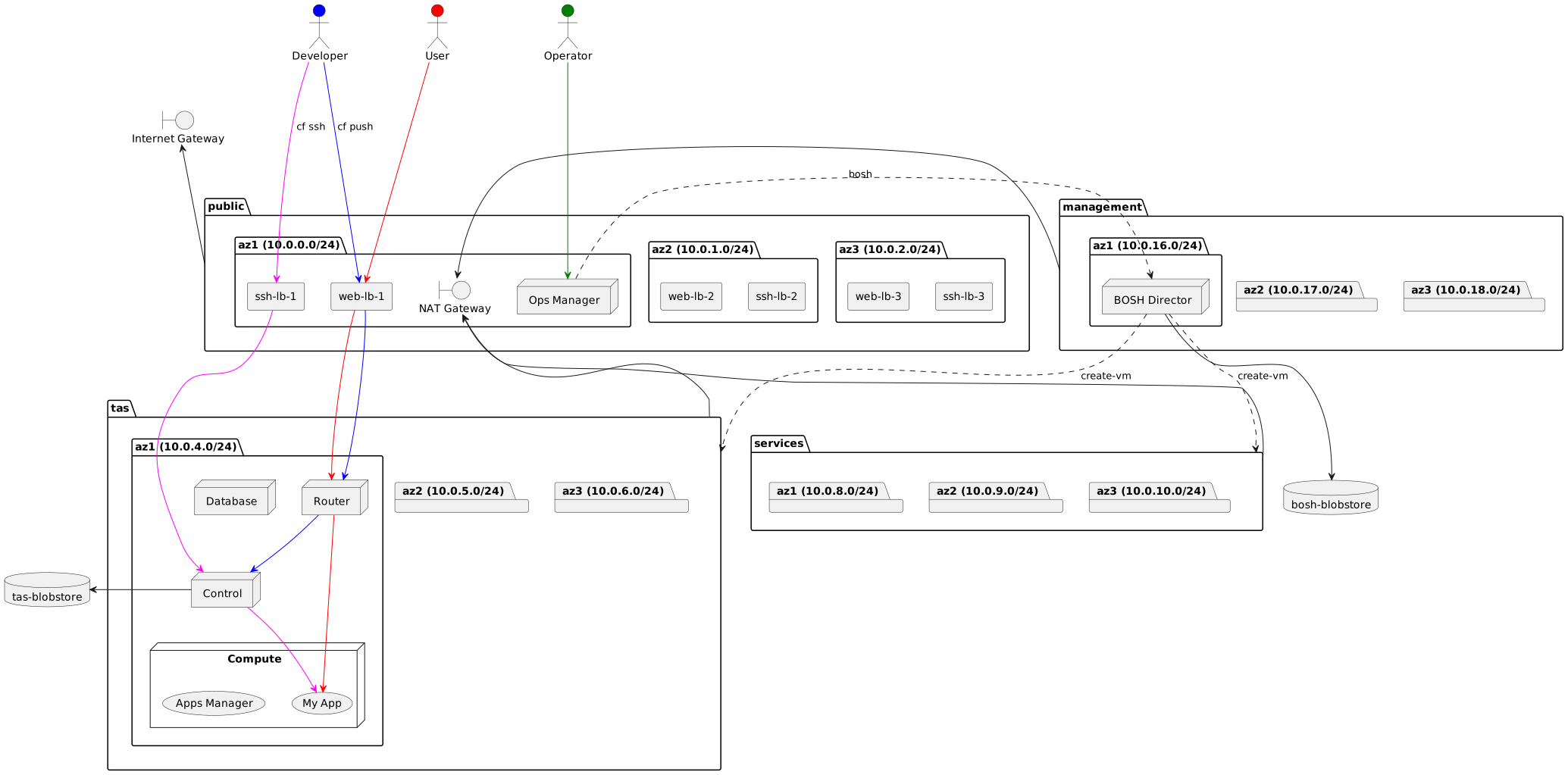
The environment to be constructed will look like the following diagram. Since we are using the Small Footprint edition, the VMs created will be:
* Compute (where the application runs, and containers are built here)
* Control (API server, authentication, and authorization server, etc.)
* Database (MySQL that stores TAS information)
* Router (entry point for accessing applications and API servers)
These will be created on the `tas` network.
 TAS itself is packaged in a format called "Tile" with the extension `.pivotal`. Download the TAS Tile from the [Broadcom Support Portal](https://support.broadcom.com) (BSP).
Log in to BSP and select "Tanzu" as shown in the following diagram.
TAS itself is packaged in a format called "Tile" with the extension `.pivotal`. Download the TAS Tile from the [Broadcom Support Portal](https://support.broadcom.com) (BSP).
Log in to BSP and select "Tanzu" as shown in the following diagram.
 Select "VMware Tanzu Application Service for VMs" from "My downloads".
 Click "VMware Tanzu Application Service for VMs".
 Click the latest version of the 6.0 series, in the diagram below, `6.0.4+LTS-T`.
 **Check "I agree to the Terms and Conditions"** and download "Small Footprint TAS".
 `srt-6.0.4-build.3.pivotal` will be downloaded. The file size is over 18GB, so be mindful of your disk space.
Click the "IMPORT A PRODUCT" button on the left of the Ops Manager dashboard and upload the downloaded file. It will take some time due to the large file size.
`srt-6.0.4-build.3.pivotal` will be downloaded. The file size is over 18GB, so be mindful of your disk space.
Click the "IMPORT A PRODUCT" button on the left of the Ops Manager dashboard and upload the downloaded file. It will take some time due to the large file size.
 Once the Tile upload is complete, the product name and version will be displayed on the left of the dashboard. Click the "+" button next to the version.
 Click the "Small Footprint VMware Tanzu Application Service" Tile.
 Configure TAS settings.
#### Assign AZs and Networks
Set the AZ and Network where TAS will be deployed.
Configure TAS settings.
#### Assign AZs and Networks
Set the AZ and Network where TAS will be deployed.
 1. Select any AZ for `Place singleton jobs in AZ` (VMs that cannot scale out will be installed in this AZ. Compute, Control, Database, and Router can all scale out.)
2. Check all AZs in `Balance other jobs in AZs`
3. Select `tas` for `Network`
Click the "Save" button to save the settings.
#### Domains
Set the domain names to be used by TAS.
https://docs.vmware.com/en/VMware-Tanzu-Application-Service/6.0/tas-for-vms/config-domains.html
1. Select any AZ for `Place singleton jobs in AZ` (VMs that cannot scale out will be installed in this AZ. Compute, Control, Database, and Router can all scale out.)
2. Check all AZs in `Balance other jobs in AZs`
3. Select `tas` for `Network`
Click the "Save" button to save the settings.
#### Domains
Set the domain names to be used by TAS.
https://docs.vmware.com/en/VMware-Tanzu-Application-Service/6.0/tas-for-vms/config-domains.html
 1. Set the result of `cat tas-paving-aws/terraform.tfstate | jq .outputs.stable_config_tas.value -r | jq -r .sys_dns_domain` to `System domain`
1. Set the result of `cat tas-paving-aws/terraform.tfstate | jq .outputs.stable_config_tas.value -r | jq -r .apps_dns_domain` to `Apps domain`
Click the "Save" button to save the settings.
#### Networking
Configure the Network settings for TAS.
https://docs.vmware.com/en/VMware-Tanzu-Application-Service/6.0/tas-for-vms/config-networking.html
1. Click the "Add" button in `Certificates and private keys for the Gorouter`
1. For Let's Encrypt,
1. Set `lets-encrypt` for `Name`
1. Set the result of `cat .lego/certificates/_.${SUBDOMAIN}.crt` to `Certificate PEM` in `Certificate and private key`
1. Set the result of `cat .lego/certificates/_.${SUBDOMAIN}.key` to `Private Key PEM` in `Certificate and private key`
1. For Self-Signed Certificates
1. Set `self-signed` for `Name`
1. Click `Generate RSA Certificate` in `Certificate and private key`, set the result of `echo "*.$(cat tas-paving-aws/terraform.tfstate | jq .outputs.stable_config_tas.value -r | jq -r .sys_dns_domain),*.$(cat tas-paving-aws/terraform.tfstate | jq .outputs.stable_config_tas.value -r | jq -r .apps_dns_domain)"` to `Domain names (comma separated)`, and click "Generate"
1. Select `Gorouter` for `TLS termination point`
1. Uncheck `Add Zipkin tracing headers` (W3C tracing headers are sufficient)
1. Check `Add W3C tracing headers`
Click the "Save" button to save the settings.
#### App Developer Controls
Configure settings related to feature restrictions for TAS developers.
https://docs.vmware.com/en/VMware-Tanzu-Application-Service/6.0/tas-for-vms/config-app-dev-controls.html
1. Set the result of `cat tas-paving-aws/terraform.tfstate | jq .outputs.stable_config_tas.value -r | jq -r .sys_dns_domain` to `System domain`
1. Set the result of `cat tas-paving-aws/terraform.tfstate | jq .outputs.stable_config_tas.value -r | jq -r .apps_dns_domain` to `Apps domain`
Click the "Save" button to save the settings.
#### Networking
Configure the Network settings for TAS.
https://docs.vmware.com/en/VMware-Tanzu-Application-Service/6.0/tas-for-vms/config-networking.html
1. Click the "Add" button in `Certificates and private keys for the Gorouter`
1. For Let's Encrypt,
1. Set `lets-encrypt` for `Name`
1. Set the result of `cat .lego/certificates/_.${SUBDOMAIN}.crt` to `Certificate PEM` in `Certificate and private key`
1. Set the result of `cat .lego/certificates/_.${SUBDOMAIN}.key` to `Private Key PEM` in `Certificate and private key`
1. For Self-Signed Certificates
1. Set `self-signed` for `Name`
1. Click `Generate RSA Certificate` in `Certificate and private key`, set the result of `echo "*.$(cat tas-paving-aws/terraform.tfstate | jq .outputs.stable_config_tas.value -r | jq -r .sys_dns_domain),*.$(cat tas-paving-aws/terraform.tfstate | jq .outputs.stable_config_tas.value -r | jq -r .apps_dns_domain)"` to `Domain names (comma separated)`, and click "Generate"
1. Select `Gorouter` for `TLS termination point`
1. Uncheck `Add Zipkin tracing headers` (W3C tracing headers are sufficient)
1. Check `Add W3C tracing headers`
Click the "Save" button to save the settings.
#### App Developer Controls
Configure settings related to feature restrictions for TAS developers.
https://docs.vmware.com/en/VMware-Tanzu-Application-Service/6.0/tas-for-vms/config-app-dev-controls.html
 1. Check `Allow space developers to manage network policies`
#### App Security Groups
Configure settings related to TAS App Security Groups.
1. Check `Allow space developers to manage network policies`
#### App Security Groups
Configure settings related to TAS App Security Groups.
 1. Enter `X` in `You are responsible for setting the appropriate ASGs after TAS for VMs finishes deploying.`
#### UAA
Configure settings related to feature restrictions for UAA (authentication and authorization server).
https://docs.vmware.com/en/VMware-Tanzu-Application-Service/6.0/tas-for-vms/config-uaa.html
1. Enter `X` in `You are responsible for setting the appropriate ASGs after TAS for VMs finishes deploying.`
#### UAA
Configure settings related to feature restrictions for UAA (authentication and authorization server).
https://docs.vmware.com/en/VMware-Tanzu-Application-Service/6.0/tas-for-vms/config-uaa.html
 1. In `SAML service provider certificate and private key`
1. Set `self-signed` for `Name`
1. Click `Generate RSA Certificate` in `Certificate and private key`, set the result of `echo "*.login.$(cat tas-paving-aws/terraform.tfstate | jq .outputs.stable_config_tas.value -r | jq -r .sys_dns_domain)"` to `Domain names (comma separated)`, and click "Generate"
> [!NOTE]
> The SAML service provider feature is not used
Click the "Save" button to save the settings.
#### CredHub
Configure settings for CredHub (secret management server).
https://docs.vmware.com/en/VMware-Tanzu-Application-Service/6.0/tas-for-vms/config-credhub.html
1. In `SAML service provider certificate and private key`
1. Set `self-signed` for `Name`
1. Click `Generate RSA Certificate` in `Certificate and private key`, set the result of `echo "*.login.$(cat tas-paving-aws/terraform.tfstate | jq .outputs.stable_config_tas.value -r | jq -r .sys_dns_domain)"` to `Domain names (comma separated)`, and click "Generate"
> [!NOTE]
> The SAML service provider feature is not used
Click the "Save" button to save the settings.
#### CredHub
Configure settings for CredHub (secret management server).
https://docs.vmware.com/en/VMware-Tanzu-Application-Service/6.0/tas-for-vms/config-credhub.html
 1. In `Internal encryption provider keys`
1. Click the "Add" button
1. Set `key1` for `Name`
1. Set the result of `echo ${RANDOM}${RANDOM}${RANDOM}${RANDOM}${RANDOM}${RANDOM}` to `Key`
1. Check `Primary`
1. Check `Secure service instance credentials`
Click the "Save" button to save the settings.
#### Internal MySQL
Configure settings for the internal MySQL.
1. In `Internal encryption provider keys`
1. Click the "Add" button
1. Set `key1` for `Name`
1. Set the result of `echo ${RANDOM}${RANDOM}${RANDOM}${RANDOM}${RANDOM}${RANDOM}` to `Key`
1. Check `Primary`
1. Check `Secure service instance credentials`
Click the "Save" button to save the settings.
#### Internal MySQL
Configure settings for the internal MySQL.
 1. Set the alert notification email address in `Email address`
Click the "Save" button to save the settings.
#### File Storage
Configure settings for file storage. This time, we will use the S3 bucket created by Terraform.
https://docs.vmware.com/en/VMware-Tanzu-Application-Service/6.0/tas-for-vms/config-file-storage.html
1. Set the alert notification email address in `Email address`
Click the "Save" button to save the settings.
#### File Storage
Configure settings for file storage. This time, we will use the S3 bucket created by Terraform.
https://docs.vmware.com/en/VMware-Tanzu-Application-Service/6.0/tas-for-vms/config-file-storage.html
 1. In `Cloud Controller filesystem`
1. Select `External S3-compatible filestore`
1. Set the [S3 Endpoint URL](https://docs.aws.amazon.com/general/latest/gr/s3.html) of the target region in `URL endpoint`. Usually, the value is `echo https://s3.${AWS_REGION}.amazonaws.com`
1. Check `S3 AWS with instance profile`
1. Set the result of `echo $AWS_REGION` in `Region`
1. Uncheck `Use path-style S3 URLs (deprecated)`
1. Set the result of `cat tas-paving-aws/terraform.tfstate | jq .outputs.stable_config_tas.value -r | jq -r .buildpacks_bucket_name` in `Buildpacks bucket name`
1. Set the result of `cat tas-paving-aws/terraform.tfstate | jq .outputs.stable_config_tas.value -r | jq -r .droplets_bucket_name` in `Droplets bucket name`
1. Set the result of `cat tas-paving-aws/terraform.tfstate | jq .outputs.stable_config_tas.value -r | jq -r .packages_bucket_name` in `Packages bucket name`
1. Set the result of `cat tas-paving-aws/terraform.tfstate | jq .outputs.stable_config_tas.value -r | jq -r .resources_bucket_name` in `Resources bucket name`
1. Check `Use versioning for backup and restore`
#### Cloud Controller
Configure settings for the Cloud Controller (API server).
https://docs.vmware.com/en/VMware-Tanzu-Application-Service/6.0/tas-for-vms/config-cloud-controller.html
1. In `Cloud Controller filesystem`
1. Select `External S3-compatible filestore`
1. Set the [S3 Endpoint URL](https://docs.aws.amazon.com/general/latest/gr/s3.html) of the target region in `URL endpoint`. Usually, the value is `echo https://s3.${AWS_REGION}.amazonaws.com`
1. Check `S3 AWS with instance profile`
1. Set the result of `echo $AWS_REGION` in `Region`
1. Uncheck `Use path-style S3 URLs (deprecated)`
1. Set the result of `cat tas-paving-aws/terraform.tfstate | jq .outputs.stable_config_tas.value -r | jq -r .buildpacks_bucket_name` in `Buildpacks bucket name`
1. Set the result of `cat tas-paving-aws/terraform.tfstate | jq .outputs.stable_config_tas.value -r | jq -r .droplets_bucket_name` in `Droplets bucket name`
1. Set the result of `cat tas-paving-aws/terraform.tfstate | jq .outputs.stable_config_tas.value -r | jq -r .packages_bucket_name` in `Packages bucket name`
1. Set the result of `cat tas-paving-aws/terraform.tfstate | jq .outputs.stable_config_tas.value -r | jq -r .resources_bucket_name` in `Resources bucket name`
1. Check `Use versioning for backup and restore`
#### Cloud Controller
Configure settings for the Cloud Controller (API server).
https://docs.vmware.com/en/VMware-Tanzu-Application-Service/6.0/tas-for-vms/config-cloud-controller.html
 1. Select `cflinuxfs4 and tanzu-jammy` in `Available Stacks`
1. Uncheck `Enable legacy MD5 buildpack paths. If disabled, xxhash64 is used for calculating paths in buildpack image layers.`
#### Errands
Configure settings for Errands (post-installation tasks).
https://docs.vmware.com/en/VMware-Tanzu-Application-Service/6.0/tas-for-vms/config-errands.html
1. Select `cflinuxfs4 and tanzu-jammy` in `Available Stacks`
1. Uncheck `Enable legacy MD5 buildpack paths. If disabled, xxhash64 is used for calculating paths in buildpack image layers.`
#### Errands
Configure settings for Errands (post-installation tasks).
https://docs.vmware.com/en/VMware-Tanzu-Application-Service/6.0/tas-for-vms/config-errands.html
 * Select `OFF` for `App Autoscaler Errand`
* Select `OFF` for `App Autoscaler Smoke Test Errand`
* Select `OFF` for `NFS Broker Errand`
* Select `OFF` for `SMB Broker Errand`
#### Resource Config
Configure settings for the resources of the VMs to be created.
https://docs.vmware.com/en/VMware-Tanzu-Application-Service/6.0/tas-for-vms/config-resources.html
* Select `OFF` for `App Autoscaler Errand`
* Select `OFF` for `App Autoscaler Smoke Test Errand`
* Select `OFF` for `NFS Broker Errand`
* Select `OFF` for `SMB Broker Errand`
#### Resource Config
Configure settings for the resources of the VMs to be created.
https://docs.vmware.com/en/VMware-Tanzu-Application-Service/6.0/tas-for-vms/config-resources.html
 * Select `t3a.medium` for `VM TYPE` of `Database`
* Select `10GB` for `PERSISTENT DISK TYPE` of `Database`
* Set the result of `cat tas-paving-aws/terraform.tfstate | jq .outputs.stable_config_tas.value -r | jq -r '.ssh_target_group_name | "alb:" + .'` in `LOAD BALANCERS` of `Control`
* Select `t3a.micro` for `VM TYPE` of `Router`
* Set the result of `cat tas-paving-aws/terraform.tfstate | jq .outputs.stable_config_tas.value -r | jq -r '.web_target_group_names|map("alb:" + .)|join(",")'` in `LOAD BALANCERS` of `Router`
* Set `INSTANCES` of `Backup Restore Node` to `0`
* Set `INSTANCES` of `MySQL Monitor` to `0`
Click the "Save" button at the top right to save the settings.
#### Creating VM Extensions
When using the AWS resources created with Terraform in TAS, the following items cannot be configured from the GUI:
1. Setting a Security Group to allow HTTP(S) requests from the NLB to the Router VM
2. Setting a Security Group to allow SSH requests from the NLB to the Control VM
3. Setting an Instance Profile to allow access to S3 on the Control VM
These settings can be configured using the `om` CLI to create and set up VM Extensions instead of using the GUI.
The following documents may be helpful:
* [VMware Tanzu Application Service Load Balancer Configuration](https://docs.vmware.com/en/VMware-Tanzu-Application-Service/6.0/tas-for-vms/configure-lb.html)
* [VMware Tanzu Application Service File Storage](https://docs.vmware.com/en/VMware-Tanzu-Application-Service/6.0/tas-for-vms/pas-file-storage.html#fog-with-aws-iam-instance-profiles-3)
> [!TIP]
> [VM Extensions](https://bosh.io/docs/aws-cpi/#resource-pools) are extension points that can apply various features to VMs. Using VM Extensions allows for the use of features not officially provided in TAS.
Create files to define the three VM Extensions as follows:
```yaml
cat < vm-extension-web-lb-security-groups.yml
---
vm-extension-config:
name: web-lb-security-groups
cloud_properties:
security_groups:
- $(cat tas-paving-aws/terraform.tfstate | jq .outputs.stable_config_tas.value -r | jq -r .web_lb_security_group_id)
- $(cat tas-paving-aws/terraform.tfstate | jq .outputs.stable_config_opsmanager.value -r | jq -r .platform_vms_security_group_id)
---
EOF
cat < vm-extension-ssh-lb-security-groups.yml
---
vm-extension-config:
name: ssh-lb-security-groups
cloud_properties:
security_groups:
- $(cat tas-paving-aws/terraform.tfstate | jq .outputs.stable_config_tas.value -r | jq -r .ssh_lb_security_group_id)
- $(cat tas-paving-aws/terraform.tfstate | jq .outputs.stable_config_opsmanager.value -r | jq -r .platform_vms_security_group_id)
---
EOF
cat < vm-extension-cloud-controller-iam.yml
---
vm-extension-config:
name: cloud-controller-iam
cloud_properties:
iam_instance_profile: $(cat tas-paving-aws/terraform.tfstate | jq .outputs.stable_config_tas.value -r | jq -r .tas_blobstore_iam_instance_profile_name)
---
EOF
```
Create the VM Extensions with the following commands:
```
om --env env.yml create-vm-extension -c vm-extension-web-lb-security-groups.yml
om --env env.yml create-vm-extension -c vm-extension-ssh-lb-security-groups.yml
om --env env.yml create-vm-extension -c vm-extension-cloud-controller-iam.yml
```
Define the VM Extensions to be applied to the Control and Router VMs as follows:
```yaml
cat < additional-vm-extensions-cf.yml
---
product-name: cf
resource-config:
control:
additional_vm_extensions:
- ssh-lb-security-groups
- cloud-controller-iam
router:
additional_vm_extensions:
- web-lb-security-groups
---
EOF
```
Set the VM Extensions on the VMs with the following command:
```
om --env env.yml configure-product -c additional-vm-extensions-cf.yml
```
Return to the dashboard and click the "REVIEW CHANGES" button.
* Select `t3a.medium` for `VM TYPE` of `Database`
* Select `10GB` for `PERSISTENT DISK TYPE` of `Database`
* Set the result of `cat tas-paving-aws/terraform.tfstate | jq .outputs.stable_config_tas.value -r | jq -r '.ssh_target_group_name | "alb:" + .'` in `LOAD BALANCERS` of `Control`
* Select `t3a.micro` for `VM TYPE` of `Router`
* Set the result of `cat tas-paving-aws/terraform.tfstate | jq .outputs.stable_config_tas.value -r | jq -r '.web_target_group_names|map("alb:" + .)|join(",")'` in `LOAD BALANCERS` of `Router`
* Set `INSTANCES` of `Backup Restore Node` to `0`
* Set `INSTANCES` of `MySQL Monitor` to `0`
Click the "Save" button at the top right to save the settings.
#### Creating VM Extensions
When using the AWS resources created with Terraform in TAS, the following items cannot be configured from the GUI:
1. Setting a Security Group to allow HTTP(S) requests from the NLB to the Router VM
2. Setting a Security Group to allow SSH requests from the NLB to the Control VM
3. Setting an Instance Profile to allow access to S3 on the Control VM
These settings can be configured using the `om` CLI to create and set up VM Extensions instead of using the GUI.
The following documents may be helpful:
* [VMware Tanzu Application Service Load Balancer Configuration](https://docs.vmware.com/en/VMware-Tanzu-Application-Service/6.0/tas-for-vms/configure-lb.html)
* [VMware Tanzu Application Service File Storage](https://docs.vmware.com/en/VMware-Tanzu-Application-Service/6.0/tas-for-vms/pas-file-storage.html#fog-with-aws-iam-instance-profiles-3)
> [!TIP]
> [VM Extensions](https://bosh.io/docs/aws-cpi/#resource-pools) are extension points that can apply various features to VMs. Using VM Extensions allows for the use of features not officially provided in TAS.
Create files to define the three VM Extensions as follows:
```yaml
cat < vm-extension-web-lb-security-groups.yml
---
vm-extension-config:
name: web-lb-security-groups
cloud_properties:
security_groups:
- $(cat tas-paving-aws/terraform.tfstate | jq .outputs.stable_config_tas.value -r | jq -r .web_lb_security_group_id)
- $(cat tas-paving-aws/terraform.tfstate | jq .outputs.stable_config_opsmanager.value -r | jq -r .platform_vms_security_group_id)
---
EOF
cat < vm-extension-ssh-lb-security-groups.yml
---
vm-extension-config:
name: ssh-lb-security-groups
cloud_properties:
security_groups:
- $(cat tas-paving-aws/terraform.tfstate | jq .outputs.stable_config_tas.value -r | jq -r .ssh_lb_security_group_id)
- $(cat tas-paving-aws/terraform.tfstate | jq .outputs.stable_config_opsmanager.value -r | jq -r .platform_vms_security_group_id)
---
EOF
cat < vm-extension-cloud-controller-iam.yml
---
vm-extension-config:
name: cloud-controller-iam
cloud_properties:
iam_instance_profile: $(cat tas-paving-aws/terraform.tfstate | jq .outputs.stable_config_tas.value -r | jq -r .tas_blobstore_iam_instance_profile_name)
---
EOF
```
Create the VM Extensions with the following commands:
```
om --env env.yml create-vm-extension -c vm-extension-web-lb-security-groups.yml
om --env env.yml create-vm-extension -c vm-extension-ssh-lb-security-groups.yml
om --env env.yml create-vm-extension -c vm-extension-cloud-controller-iam.yml
```
Define the VM Extensions to be applied to the Control and Router VMs as follows:
```yaml
cat < additional-vm-extensions-cf.yml
---
product-name: cf
resource-config:
control:
additional_vm_extensions:
- ssh-lb-security-groups
- cloud-controller-iam
router:
additional_vm_extensions:
- web-lb-security-groups
---
EOF
```
Set the VM Extensions on the VMs with the following command:
```
om --env env.yml configure-product -c additional-vm-extensions-cf.yml
```
Return to the dashboard and click the "REVIEW CHANGES" button.
 Click "SEE CHANGES" on the BOSH Director.
 In the `Cloud Config` section, you should see the VM Extensions you configured. (Note: `cloud-controller-iam` is missing in the example below, but it should appear if configured as described above.)
 Return to the previous screen and click the "APPLY CHANGES" button.
 The installation will proceed. Depending on the environment, this may take 30 minutes to an hour.
 When "Changes Applied" appears, the installation is successful.
 ### Deploying a Sample App
Let's deploy an app to the installed TAS.
Retrieve the `admin` user's password for TAS. Click the "Credentials" tab on the TAS Tile.
### Deploying a Sample App
Let's deploy an app to the installed TAS.
Retrieve the `admin` user's password for TAS. Click the "Credentials" tab on the TAS Tile.
 Scroll to the "UAA" section and click the "Link to Credential" under "Admin Credentials" to display the `admin` user's password.
 You can also retrieve the admin password using the `om` CLI as follows:
```
ADMIN_PASSWORD=$(om --env env.yml credentials -p cf -c .uaa.admin_credentials -f password)
```
Refer to the following document to install the `cf` CLI:
* [Cloud Foundry CLI Installation](https://docs.cloudfoundry.org/cf-cli/install-go-cli.html)
```
wget -q -O - https://packages.cloudfoundry.org/debian/cli.cloudfoundry.org.key | sudo apt-key add -
echo "deb https://packages.cloudfoundry.org/debian stable main" | sudo tee /etc/apt/sources.list.d/cloudfoundry-cli.list
sudo apt-get update
sudo apt-get install cf8-cli -y
```
The following version was tested:
```
$ cf --version
cf version 8.7.10+5b7ce3c.2024-04-04
```
Log in with the following command:
```
SYSTEM_DOMAIN=$(cat tas-paving-aws/terraform.tfstate | jq .outputs.stable_config_tas.value -r | jq -r .sys_dns_domain)
cf login -a api.${SYSTEM_DOMAIN} -u admin -p ${ADMIN_PASSWORD} -o system -s system
```
You should see the following output:
```
API endpoint: api.sys.sandbox.aws.maki.lol
Authenticating...
OK
Targeted org system.
Targeted space system.
API endpoint: https://api.sys.sandbox.aws.maki.lol
API version: 3.166.0
user: admin
org: system
space: system
```
Create the `demo` org and `demo` space with the following commands:
```
cf create-org demo
cf create-space demo -o demo
cf target -o demo -s demo
```
Download the built JAR file of the sample Java app:
```
wget https://gist.github.com/making/fca49149aea3a7307b293685ba20c7b7/raw/6daab9a0a88fe0f36072ca4d1ee622d2354f3505/pcf-ers-demo1-0.0.1-SNAPSHOT.jar
```
Deploy the app using the `cf push` command:
```
cf push attendees -p pcf-ers-demo1-0.0.1-SNAPSHOT.jar -m 768m -b java_buildpack_offline
```
After the deployment is complete, you can check the status with the `cf apps` command:
```
$ cf apps
Getting apps in org demo / space demo as admin...
name requested state processes routes
attendees started web:1/1, task:0/0 attendees.apps.sandbox.aws.maki.lol
```
Access the displayed URL to see a screen like this:
You can also retrieve the admin password using the `om` CLI as follows:
```
ADMIN_PASSWORD=$(om --env env.yml credentials -p cf -c .uaa.admin_credentials -f password)
```
Refer to the following document to install the `cf` CLI:
* [Cloud Foundry CLI Installation](https://docs.cloudfoundry.org/cf-cli/install-go-cli.html)
```
wget -q -O - https://packages.cloudfoundry.org/debian/cli.cloudfoundry.org.key | sudo apt-key add -
echo "deb https://packages.cloudfoundry.org/debian stable main" | sudo tee /etc/apt/sources.list.d/cloudfoundry-cli.list
sudo apt-get update
sudo apt-get install cf8-cli -y
```
The following version was tested:
```
$ cf --version
cf version 8.7.10+5b7ce3c.2024-04-04
```
Log in with the following command:
```
SYSTEM_DOMAIN=$(cat tas-paving-aws/terraform.tfstate | jq .outputs.stable_config_tas.value -r | jq -r .sys_dns_domain)
cf login -a api.${SYSTEM_DOMAIN} -u admin -p ${ADMIN_PASSWORD} -o system -s system
```
You should see the following output:
```
API endpoint: api.sys.sandbox.aws.maki.lol
Authenticating...
OK
Targeted org system.
Targeted space system.
API endpoint: https://api.sys.sandbox.aws.maki.lol
API version: 3.166.0
user: admin
org: system
space: system
```
Create the `demo` org and `demo` space with the following commands:
```
cf create-org demo
cf create-space demo -o demo
cf target -o demo -s demo
```
Download the built JAR file of the sample Java app:
```
wget https://gist.github.com/making/fca49149aea3a7307b293685ba20c7b7/raw/6daab9a0a88fe0f36072ca4d1ee622d2354f3505/pcf-ers-demo1-0.0.1-SNAPSHOT.jar
```
Deploy the app using the `cf push` command:
```
cf push attendees -p pcf-ers-demo1-0.0.1-SNAPSHOT.jar -m 768m -b java_buildpack_offline
```
After the deployment is complete, you can check the status with the `cf apps` command:
```
$ cf apps
Getting apps in org demo / space demo as admin...
name requested state processes routes
attendees started web:1/1, task:0/0 attendees.apps.sandbox.aws.maki.lol
```
Access the displayed URL to see a screen like this:
 ### Accessing Apps Manager
Apps Manager is the developer management console for TAS.
The URL is `https://apps.${SYSTEM_DOMAIN}`. Accessing this URL redirects you to the login screen.
### Accessing Apps Manager
Apps Manager is the developer management console for TAS.
The URL is `https://apps.${SYSTEM_DOMAIN}`. Accessing this URL redirects you to the login screen.
 Enter the username and password
used for `cf login` and click the "SIGN IN" button. (This is different from the Ops Manager account)
You will be redirected to a screen like this.
Click the `demo` org.
Enter the username and password
used for `cf login` and click the "SIGN IN" button. (This is different from the Ops Manager account)
You will be redirected to a screen like this.
Click the `demo` org.
 Click the `demo` space.
 Click `attendees`.
 You will see the management screen for the deployed `attendees` app.
 ### Uninstallation
Click your username at the top right of the Ops Manager dashboard and select "Advanced Options".
Click the "DELETE THIS INSTALLATION" button and then the "Confirm" button.
### Uninstallation
Click your username at the top right of the Ops Manager dashboard and select "Advanced Options".
Click the "DELETE THIS INSTALLATION" button and then the "Confirm" button.
 Running "Apply Changes" in this state will uninstall TAS and BOSH Director.
 > [!TIP]
> If you want to keep the AWS resources, it's a good idea to export the Tile settings before uninstallation using the following commands:
>
> ```
> om --env env.yml staged-director-config --no-redact | grep -v guid: > director.yml
> om --env env.yml staged-config -p cf > cf.yml
> ```
>
> The next time you install on the same AWS resources, you can set the Tile settings with:
>
> ```
> om --env env.yml configure-director -c director.yml
> om --env env.yml configure-product -c cf.yml
> ```
Delete Ops Manager with the following command:
```
om vm-lifecycle delete-vm --config=opsman.yml -state-file=state.yml
```
> [!TIP]
>
> If `AWS_ACCESS_KEY_ID` and `AWS_SECRET_ACCESS_KEY` have been updated, regenerate the `opsman.yml` file with the following command:
>
> ```yaml
> cat < opsman.yml
> ---
> opsman-configuration:
> aws:
> region: ${AWS_REGION}
> vpc_subnet_id: $(cat tas-paving-aws/terraform.tfstate | jq .outputs.stable_config_opsmanager.value -r | jq -r .ops_manager_subnet_id)
> security_group_ids:
> - $(cat tas-paving-aws/terraform.tfstate | jq .outputs.stable_config_opsmanager.value -r | jq -r .ops_manager_security_group_id)
> - $(cat tas-paving-aws/terraform.tfstate | jq .outputs.stable_config_opsmanager.value -r | jq -r .platform_vms_security_group_id)
> key_pair_name: $(cat tas-paving-aws/terraform.tfstate | jq .outputs.stable_config_opsmanager.value -r | jq -r .ops_manager_key_pair_name)
> iam_instance_profile_name: $(cat tas-paving-aws/terraform.tfstate | jq .outputs.stable_config_opsmanager.value -r | jq -r .ops_manager_iam_instance_profile_name)
> access_key_id: ${AWS_ACCESS_KEY_ID}
> secret_access_key: ${AWS_SECRET_ACCESS_KEY}
> public_ip: $(cat tas-paving-aws/terraform.tfstate | jq .outputs.stable_config_opsmanager.value -r | jq -r .ops_manager_public_ip)
> private_ip: 10.0.0.10
> ---
> EOF
> ```
Delete the AWS resources with the following command:
```
terraform destroy
```
> [!TIP]
> If you want to keep the AWS resources, it's a good idea to export the Tile settings before uninstallation using the following commands:
>
> ```
> om --env env.yml staged-director-config --no-redact | grep -v guid: > director.yml
> om --env env.yml staged-config -p cf > cf.yml
> ```
>
> The next time you install on the same AWS resources, you can set the Tile settings with:
>
> ```
> om --env env.yml configure-director -c director.yml
> om --env env.yml configure-product -c cf.yml
> ```
Delete Ops Manager with the following command:
```
om vm-lifecycle delete-vm --config=opsman.yml -state-file=state.yml
```
> [!TIP]
>
> If `AWS_ACCESS_KEY_ID` and `AWS_SECRET_ACCESS_KEY` have been updated, regenerate the `opsman.yml` file with the following command:
>
> ```yaml
> cat < opsman.yml
> ---
> opsman-configuration:
> aws:
> region: ${AWS_REGION}
> vpc_subnet_id: $(cat tas-paving-aws/terraform.tfstate | jq .outputs.stable_config_opsmanager.value -r | jq -r .ops_manager_subnet_id)
> security_group_ids:
> - $(cat tas-paving-aws/terraform.tfstate | jq .outputs.stable_config_opsmanager.value -r | jq -r .ops_manager_security_group_id)
> - $(cat tas-paving-aws/terraform.tfstate | jq .outputs.stable_config_opsmanager.value -r | jq -r .platform_vms_security_group_id)
> key_pair_name: $(cat tas-paving-aws/terraform.tfstate | jq .outputs.stable_config_opsmanager.value -r | jq -r .ops_manager_key_pair_name)
> iam_instance_profile_name: $(cat tas-paving-aws/terraform.tfstate | jq .outputs.stable_config_opsmanager.value -r | jq -r .ops_manager_iam_instance_profile_name)
> access_key_id: ${AWS_ACCESS_KEY_ID}
> secret_access_key: ${AWS_SECRET_ACCESS_KEY}
> public_ip: $(cat tas-paving-aws/terraform.tfstate | jq .outputs.stable_config_opsmanager.value -r | jq -r .ops_manager_public_ip)
> private_ip: 10.0.0.10
> ---
> EOF
> ```
Delete the AWS resources with the following command:
```
terraform destroy
```