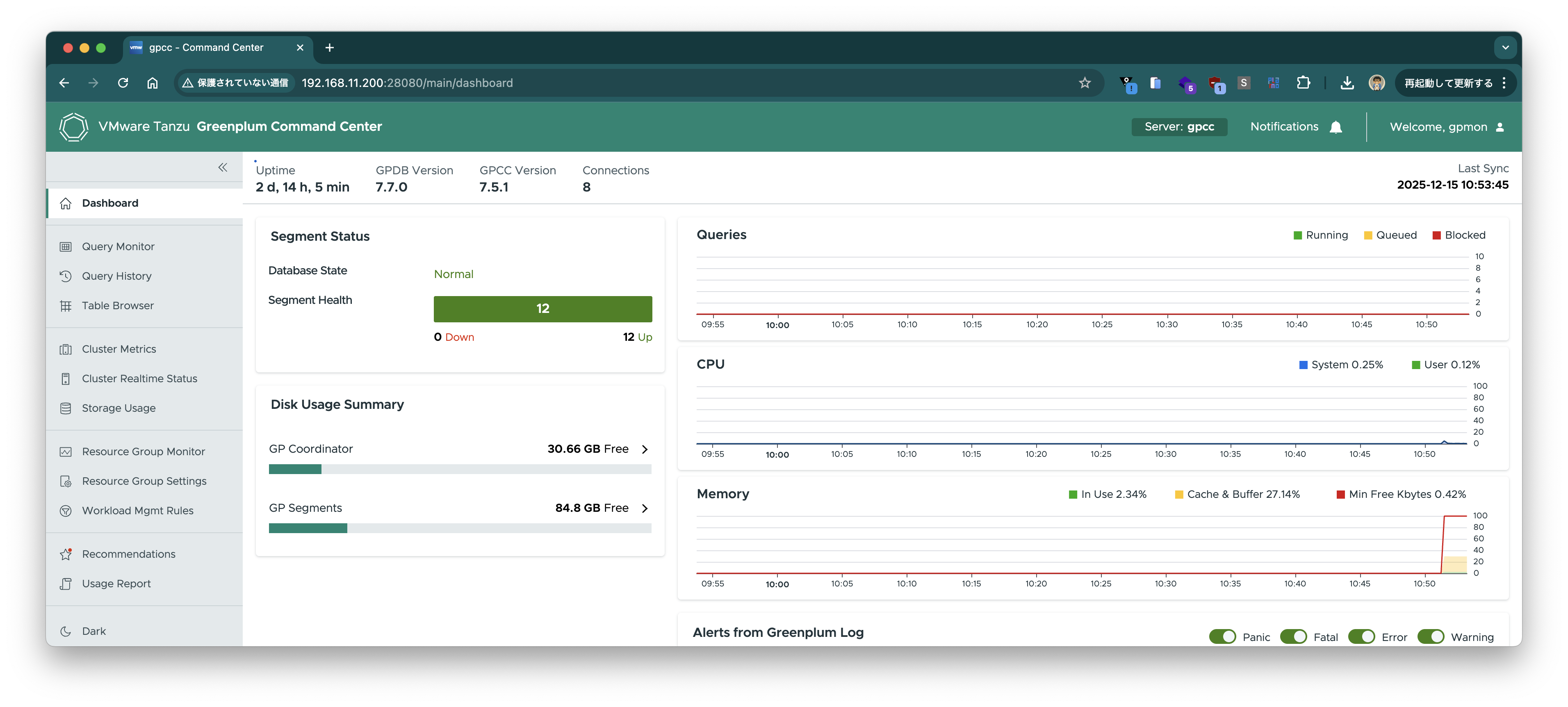
Tanzu Greenplum Command Center 7.5をVMware Fusion上のRocky Linux VMにインストールするメモ
前回の記事でインストールしたGreenplumを監視するためのTanzu Greenplum Command Centerを同じ環境にインストールします。
Broadcom Supportにログインして、Tanzu Greenplum Command Centerのダウンロードページにアクセスします。
最新バージョンを選択します。

EL9用のインストーラーをダウンロードします。
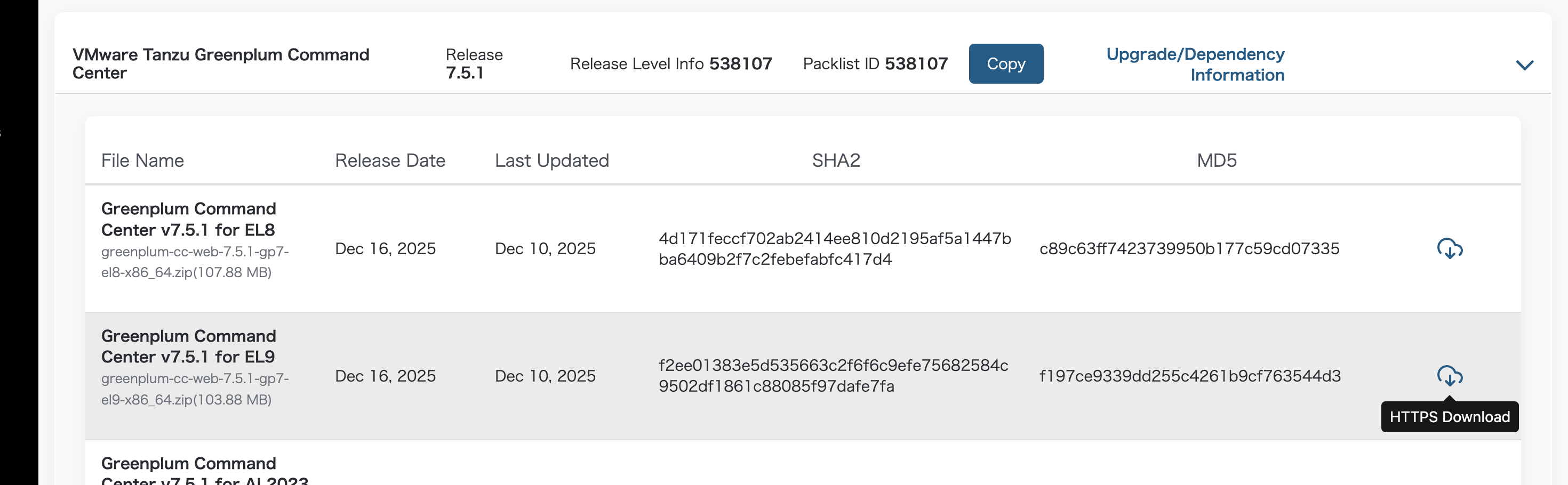
Coordinatorサーバーにscpで転送します。
scp greenplum-cc-web-7.5.1-gp7-el9-x86_64.zip root@192.168.11.200:~/Downloads/
Coordinatorサーバー上で作業します。
ssh root@192.168.11.200

mkdir -p /home/gpadmin/Downloads
mv ~/Downloads/greenplum-cc-web-7.5.1-gp7-el9-x86_64.zip /home/gpadmin/Downloads
chown -R gpadmin:gpadmin /home/gpadmin/Downloads
以下、gpadminで作業します。
sudo su - gpadmin
gpadminデータベースが存在しない場合は作成します。
createdb gpadmin
shared_preload_librariesパラメータを確認し、metrics_collectorが設定されていることを確認します。
$ gpconfig -s shared_preload_libraries
Values on all segments are consistent
GUC              : shared_preload_libraries
Coordinator value: metrics_collector
Segment     value: metrics_collector
gp_enable_query_metricsパラメータを確認し、onになっていることを確認します。
$ gpconfig -s gp_enable_query_metrics
Values on all segments are consistent
GUC              : gp_enable_query_metrics
Coordinator value: on
各サーバー上にインストール用のディレクトリとシンボリックリンクを作成します。
gpssh -f ~/hostfile_exkeys 'sudo mkdir -p /usr/local/greenplum-cc-7.5.1; sudo chown -R gpadmin:gpadmin /usr/local/greenplum-cc-7.5.1'
gpssh -f ~/hostfile_exkeys 'sudo ln -s /usr/local/greenplum-cc-7.5.1 /usr/local/greenplum-cc'
インストール設定ファイルgpcc.confを作成し、インストールコマンドを実行します。
cd ~/Downloads
unzip greenplum-cc-web-7.5.1-gp7-el9-x86_64.zip


cat <<EOF > gpcc.conf
path = /usr/local
display_name = gpcc
master_port = 5432
web_port = 28080
rpc_port = 8899
enable_ssl = false
enable_kerberos = false
language = 1
EOF

./greenplum-cc-web-7.5.1-gp7-el9-x86_64/gpccinstall-7.5.1 -c gpcc.conf
次のようなログが表示されればインストール成功です。
Read setup config from gpcc.conf
Greenplum Command Center will be installed in /usr/local/greenplum-cc-7.5.1

********************************************************************************
* WARNING: Your connections to GPCC will be insecure.                          *
********************************************************************************

INSTALLATION IN PROGRESS...
********************************************************************************
* Please check your .pgpass file for the default password.                     *
* We recommend changing the default password for the gpmon user unless you     *
* plan to connect through LDAP or kerberos.                                    *
********************************************************************************
CREATING SUPERUSER 'gpmon'...
CREATING COMMAND CENTER DATABASE 'gpperfmon'...
RELOADING pg_hba.conf. PLEASE WAIT ...

********************************************************************************
*                                                                              *
* INSTALLATION COMPLETED SUCCESSFULLY                                          *
*                                                                              *
* Source the gpcc_path.sh or add it to your bashrc file to use gpcc command    *
* utility.                                                                     *
*                                                                              *
* To see the GPCC web UI, you must first start the GPCC webserver.             *
*                                                                              *
* To start the GPCC webserver on the current host, run gpcc start.             *
*                                                                              *
********************************************************************************

To manage Command Center, use the gpcc command-line utility.
Usage:
  gpcc [OPTIONS] <command>

Application Options:
  -v, --version   Show Greenplum Command Center version
      --settings  Print the current configuration settings

Help Options:
  -h, --help      Show this help message

Available commands:
  help        Print list of commands
  krbdisable  Disables kerberos authentication
  krbenable   Enables kerberos authentication
  start       Starts Greenplum Command Center webserver and metrics collection agents
              with [-W] option to force password prompt for GPDB user gpmon [optional]
  status      Print agent status
              with [-W] option to force password prompt for GPDB user gpmon [optional]
  stop        Stops Greenplum Command Center webserver and metrics collection agents
              with [-W] option to force password prompt for GPDB user gpmon [optional]
GPCCのパスを通します。
echo 'source /usr/local/greenplum-cc/gpcc_path.sh' >> ~/.bashrc
source ~/.bashrc
GPCCを状態を確認します。まだ起動していないので、停止状態が表示されます。
$ gpcc status
2025-12-15 10:50:18 GPCC webserver: stopped
2025-12-15 10:50:18 GPCC agents: 0/4 agents running
GPCCを起動します。
$ gpcc start
2025-12-15 10:51:16 Starting the gpcc agents and webserver...
2025-12-15 10:51:16 No need to migrate gpmetrics folder from /data/coordinator/gpseg-1/gpmetrics
2025-12-15 10:51:16 redundant host gp-coordinator in cmds
2025-12-15 10:51:17 Starting GPCC 7.5.1 from /usr/local/greenplum-cc-7.5.1 ...
2025-12-15 10:51:20 Agent successfully started on 4/4 hosts
2025-12-15 10:51:20 View Greenplum Command Center at http://gp-coordinator:28080
GPCCの状態を再度確認します。すべて正常に起動していることが確認できます。
$ gpcc status
2025-12-15 10:51:35 GPCC webserver: running
2025-12-15 10:51:35 GPCC agents: 4/4 agents running
ブラウザでhttp://192.168.11.200:28080にアクセスします。ログイン画面が表示されます。
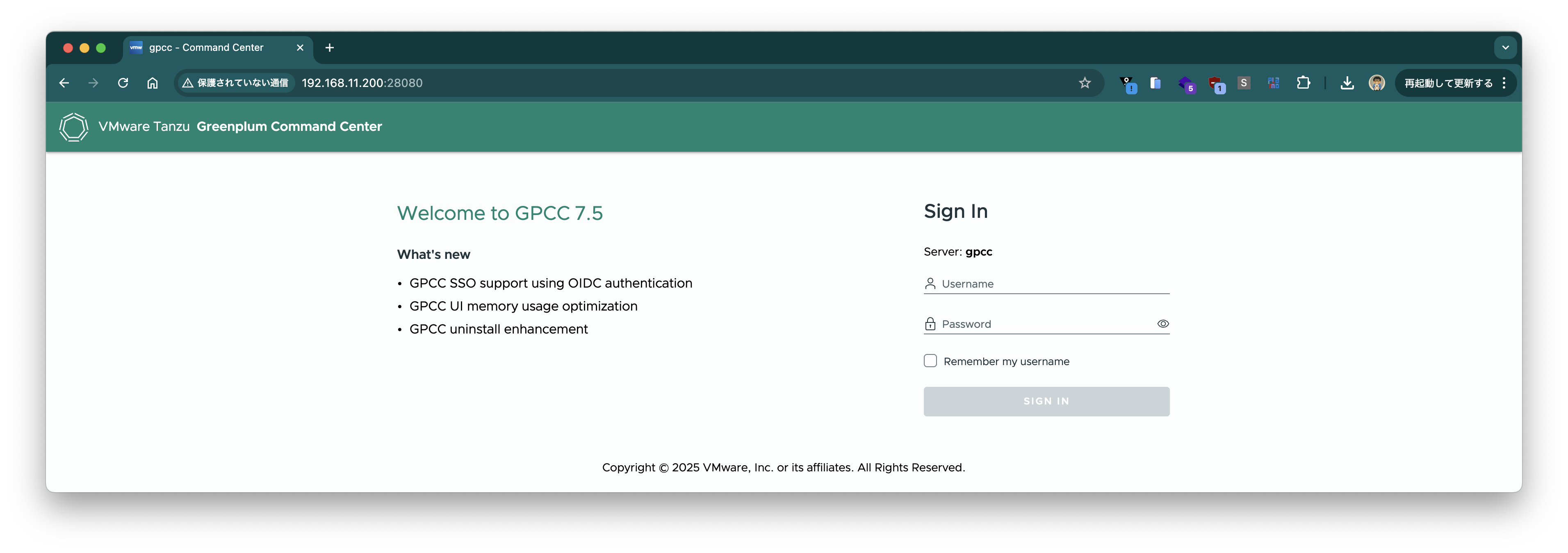
/home/gpadmin/.pgpassに書かれたユーザー名(gpmon)とパスワードでログインします。